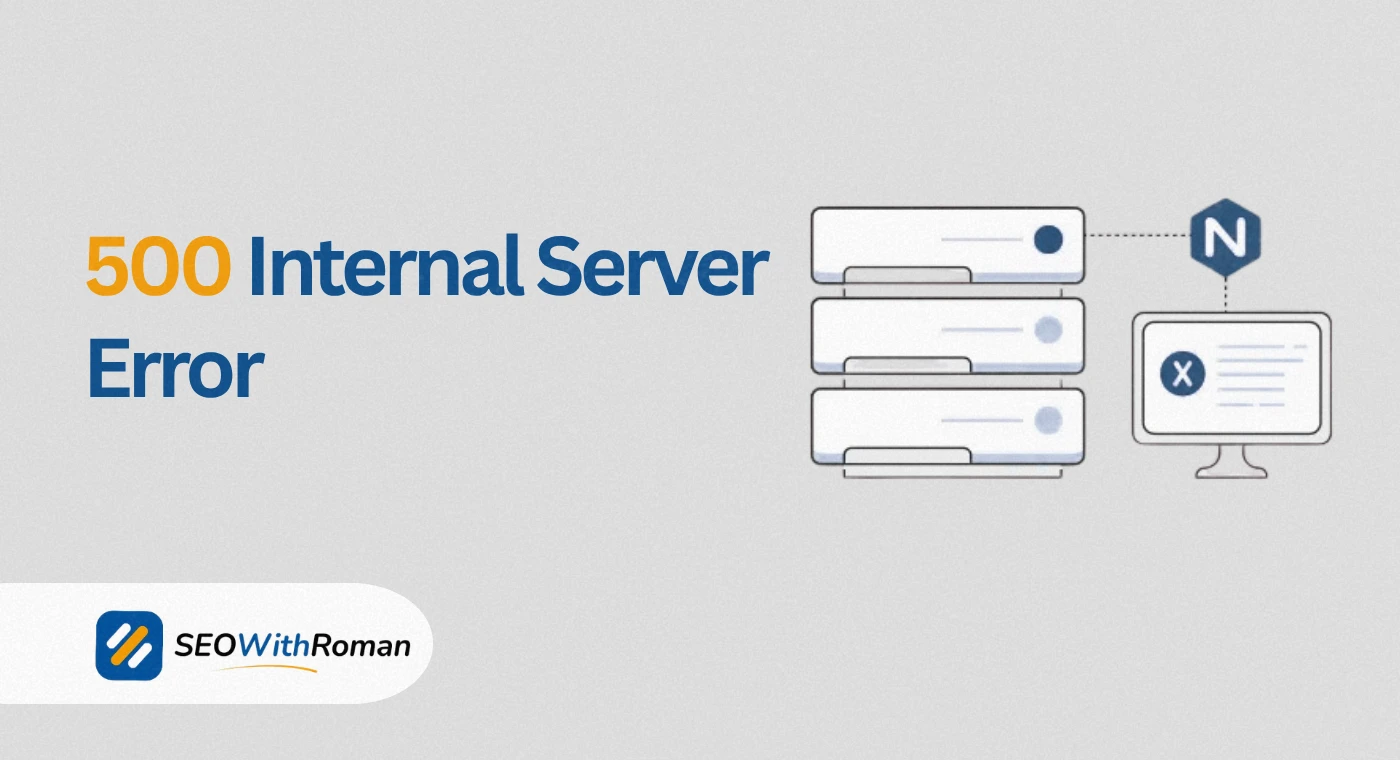
- A 500 internal server error means something went wrong on the server side, not with your browser or internet connection
- It is one of the most common HTTP 5xx server errors and can happen on any website regardless of platform or size
- A 500 error can be temporary or permanent depending on what caused it
- Fixing a 500 error on WordPress usually takes under 30 minutes if you follow the right troubleshooting steps
- Google cannot index pages returning a 500 status code, meaning unresolved 500 errors directly damage your SEO rankings
1 What Is a 500 Internal Server Error and What Does It Actually Mean
You are browsing a website, click a link, and instead of the page loading you see a blank screen with the words “500 Internal Server Error.” No explanation. No next step. Just an error that tells you nothing about what went wrong or what to do about it.
That experience is frustrating for visitors. For website owners it is far worse, because while that error sits on your page, Google cannot crawl it, visitors cannot use it, and every minute it stays broken is costing you traffic, trust, and potential revenue.
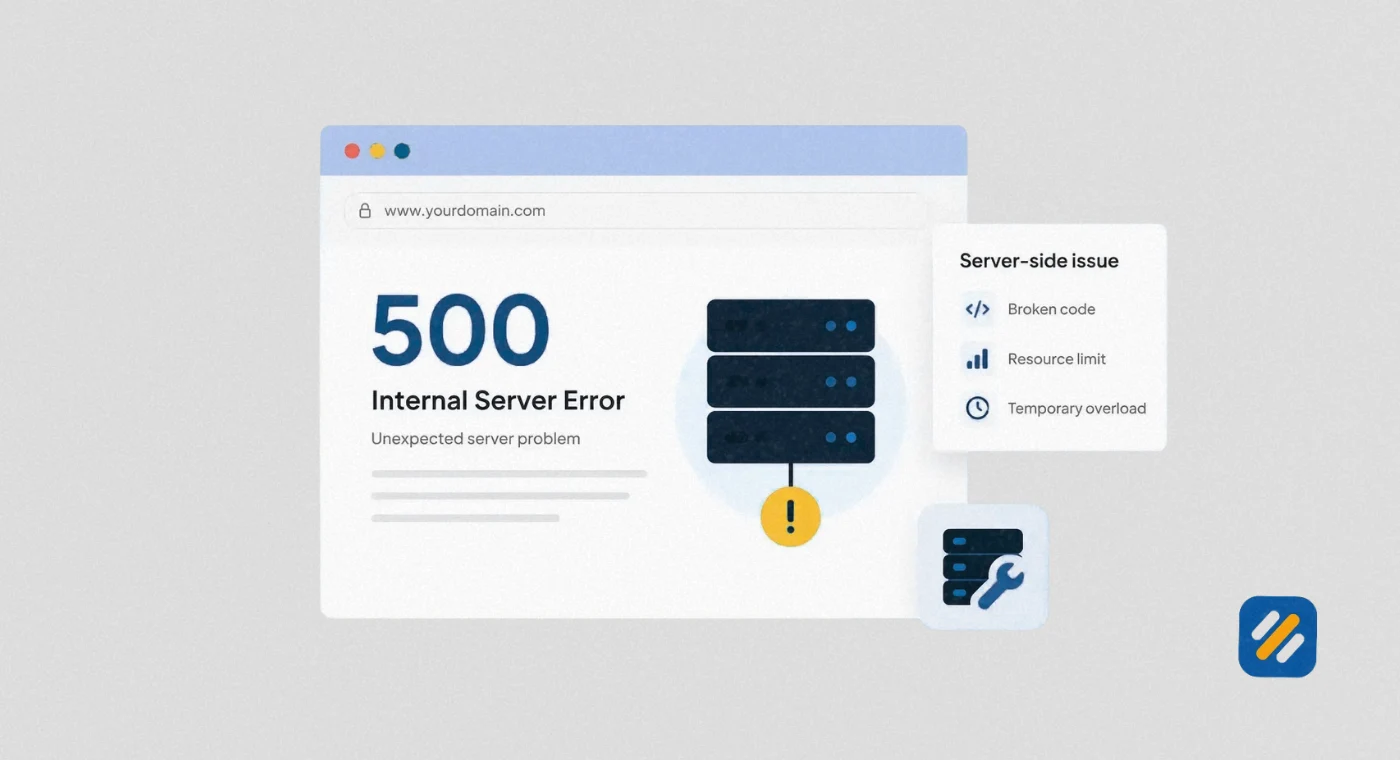
A 500 internal server error is an HTTP status code that means the web server encountered an unexpected condition that prevented it from fulfilling the request. The key word here is “unexpected.” Unlike a 404 error where the server knows exactly what happened (the page does not exist), a 500 error means the server hit a problem it does not know how to handle or explain.
The number 500 belongs to the 5xx server error category. Any HTTP status code beginning with 5 indicates a server-side problem rather than a client-side problem. This is an important distinction that answers one of the most common questions website owners ask when they first see this error.
In many years of doing technical SEO audits across B2b, ecommerce, healthcare, and SaaS websites, I have encountered 500 errors caused by everything from a single misplaced character in a configuration file to a hosting server running out of memory during a traffic spike. The error message itself never tells you which one it is. This guide will help you figure that out and fix it fast.
2 Is a 500 Server Error Your Fault? Understanding Who Is Responsible
This is one of the most searched questions about the 500 error and the answer is: it depends on which side of the error you are on.
If you are a website visitor: No, a 500 internal server error is almost never your fault. The problem exists on the website’s server, not on your device, browser, or internet connection. There is very little you can do to fix it. You can try refreshing the page, clearing your browser cache, or coming back later, but the real fix has to happen on the server side.
If you are a website owner: Yes, the 500 error is your responsibility to fix, but it is not always something you personally caused. Here are the most common reasons a 500 error appears on your website:
- A WordPress plugin or theme update introduced a PHP conflict
- Your .htaccess file was corrupted or contains an invalid rule
- A PHP script on your site hit a memory limit set by your hosting provider
- File or folder permissions were changed incorrectly
- Your hosting server experienced an internal issue unrelated to your website
- A recent code change introduced a syntax error in a core file
- Your database connection failed or the database server went down temporarily
The important thing to understand is that 500 errors are almost always fixable. They look alarming but they rarely indicate permanent damage to your website.
3 Does a 500 Error Mean the Site Is Down and Is It Temporary
Two questions that website owners ask together, so I will answer them together.
Does a 500 error mean the whole site is down?
Not always. A 500 error can affect a single page, a specific section of your site, or the entire website depending on what caused it. A broken plugin that only affects your checkout page will throw a 500 error on that page while the rest of your site works fine. A corrupted .htaccess file or a server memory issue will typically take down the entire site.
The fastest way to check is to visit your homepage and several other pages on your site. If multiple pages return a 500 error, the problem is site-wide. If only one page or one type of page is affected, the problem is more contained and easier to isolate.
Is a 500 error temporary?
Sometimes yes, sometimes no. Here is how to tell the difference
| Cause of 500 Error | Temporary or Permanent | What to Do |
|---|---|---|
| Server overload during traffic spike | Usually temporary, resolves itself | Wait 5 minutes and refresh |
| Hosting provider server issue | Temporary, outside your control | Check hosting status page |
| Corrupted .htaccess file | Permanent until fixed | Restore or regenerate .htaccess |
| PHP memory limit exceeded | Permanent until limit is increased | Increase memory limit in wp-config.php |
| Faulty plugin or theme | Permanent until deactivated | Deactivate plugins one by one |
| Bad file permissions | Permanent until corrected | Reset permissions via hosting file manager |
| Database connection failure | Could be either | Check database credentials and server status |
| Syntax error in code | Permanent until corrected | Review recent code changes |
If refreshing the page after a few minutes resolves the error, it was likely a temporary server hiccup. If the error persists after five minutes of refreshing, you are dealing with a permanent issue that requires active troubleshooting.
4 How Does a 500 Internal Server Error Affect Your SEO
Most guides about 500 errors focus entirely on the technical fix and completely ignore the SEO consequences. This section covers what actually happens to your Google rankings when a 500 error goes unresolved.
When Google’s crawler visits a page returning a 500 status code, it cannot index that page. It sees the error, logs it, and moves on. If Google revisits the same page and continues to see a 500 error over multiple crawl attempts, it will eventually remove that page from its index entirely.
The SEO damage from a 500 error scales with how long it stays unresolved
Under 1 hour: Google likely does not even recrawl in this window. Minimal SEO impact if resolved quickly.
1 to 24 hours: Google may recrawl and see the error. The page stays in the index temporarily but rankings may fluctuate. Fix immediately.
24 to 72 hours: Google will flag the page as having crawl errors in Search Console. Rankings for that page will start dropping noticeably.
Over 72 hours: Google begins removing the affected pages from its index. Recovering lost rankings after this point can take weeks even after the error is fixed.
Beyond ranking loss, a site-wide 500 error destroys crawl budget. Every page Googlebot tries to crawl and hits a 500 error on is a wasted crawl. On large websites with limited crawl budgets, a 500 error during a major crawl cycle can set back your indexing schedule by weeks.
5 How to Find 500 Internal Server Errors on Your Website
Before you can fix a 500 error you need to confirm exactly which pages are affected and get as much diagnostic information as possible.
Method 1: Google Search Console
Open GSC and go to Indexing then Pages. Look for “Server error 5xx” in the “Why pages aren’t indexed” section. This shows you every URL Google has tried to crawl and found returning a 500 or other 5xx error. This report is your most reliable source because it shows real Google crawl data.
Method 2: Check Your Server Error Logs
This is the most powerful diagnostic tool available and the one most beginners skip because it sounds technical. Your hosting provider stores error logs that show exactly what caused the 500 error, including the file, the line number, and the error message.
On Hostinger, access error logs through hPanel then Advanced then Error Logs. On cPanel hosting, go to Logs then Errors. The log will show entries like “PHP Fatal error: Allowed memory size exhausted” or “syntax error, unexpected token” followed by the exact file path where the problem occurred.
Method 3: Screaming Frog
Run a crawl of your website in Screaming Frog and filter the response codes column by 5XX. This shows every internal URL on your site currently returning a 500 error. The free version handles up to 500 URLs which is sufficient for most small websites.
Method 4: Your Browser’s Developer Tools
If you suspect a 500 error on a specific page, open that page in Chrome, press F12 to open Developer Tools, click the Network tab, and refresh the page. Look for any request showing a 500 status code in the Status column. This also shows you exactly which server request triggered the error.
6 How to Fix a 500 Internal Server Error Step by Step
Here is the exact troubleshooting sequence I follow when diagnosing a 500 error on a WordPress website. Work through these steps in order because each one rules out a specific cause.
Step 1: Check your hosting provider’s status page
Before touching anything on your website, check whether your hosting provider is experiencing a server outage. Go to your hosting provider’s status page or their Twitter account. If they are reporting an active incident, your 500 error is their problem to fix and you just need to wait.
Step 2: Deactivate all WordPress plugins
Plugins are the most common cause of 500 errors on WordPress websites. Access your WordPress files through your hosting file manager, navigate to wp-content/plugins, and rename the entire plugins folder to plugins-deactivated. This deactivates every plugin simultaneously without needing to access your WordPress dashboard.
Refresh your website. If the 500 error disappears, a plugin was causing it. Rename the folder back to plugins, then reactivate plugins one by one through your WordPress dashboard until the error returns. The last plugin you activated is the culprit.
Step 3: Reset your .htaccess file
A corrupted .htaccess file is the second most common cause of site-wide 500 errors on WordPress. Access your root directory through the hosting file manager, find the .htaccess file, and rename it to .htaccess-old. This disables the current file.
Then go to your WordPress dashboard, Settings then Permalinks, and click Save Changes without changing anything. WordPress automatically generates a clean new .htaccess file. Refresh your site and check whether the error is resolved.
Step 4: Increase the PHP memory limit
If your site is returning a 500 error on memory-intensive pages like the dashboard or checkout, a PHP memory limit may be the cause.
Open your wp-config.php file through the file manager and add this line just before the line that reads “That’s all, stop editing”: define( ‘WP_MEMORY_LIMIT’, ‘256M’ );
Save the file and refresh your site. If the error resolves, your previous memory limit was insufficient for the operations your site was performing.
Step 5: Check file and folder permissions
Incorrect file permissions are a less common but real cause of 500 errors. WordPress files should be set to 644 and folders should be set to 755. If permissions were changed during a server migration or a manual file upload, incorrect settings can trigger a 500 error. Your hosting file manager lets you check and reset permissions on any file or folder.
Step 6: Contact your hosting provider
If none of the above steps resolve the 500 error, contact your hosting provider’s support team and share the error log entries you found in Step 2 of the detection process. A good hosting provider can diagnose server-level issues that are not accessible through your WordPress dashboard or file manager.
7 500 Error Variations You Will See in the Wild
The 500 internal server error appears under different names and messages depending on the platform, browser, and server configuration. All of the following mean exactly the same thing:
| Error Message Variation | Where You Typically See It |
|---|---|
| 500 Internal Server Error | Most websites, default browser display |
| HTTP Error 500 | Internet Explorer and older browsers |
| HTTP 500 | Developer tools and server logs |
| Status Code 500 | API responses and developer consoles |
| Error 500 | Custom error pages on various platforms |
| 500. That’s an error | Google-hosted applications |
| Internal Server Error | WordPress admin area |
| Request Failed With Status Code 500 | JavaScript applications and APIs |
| Server Error 500 | Some hosting control panels |
| The website cannot display the page | Internet Explorer generic message for 500 |
If you are a developer working with APIs and seeing “request failed with status code 500,” the cause is almost always a server-side exception in the API endpoint code rather than anything related to your request. Check the API server logs for the specific exception that was thrown.
8 500 Internal Server Error vs Other 5xx Error Codes
The 500 error is the most common member of the 5xx error family but it is not the only one. Understanding how it differs from other server errors helps you diagnose problems more accurately.
| Status Code | Name | What It Means | Common Cause |
|---|---|---|---|
| 500 | Internal Server Error | Generic server-side failure | PHP errors, .htaccess issues, memory limits |
| 501 | Not Implemented | Server does not support the request method | Unsupported HTTP method used in API call |
| 502 | Bad Gateway | Upstream server sent invalid response | Overloaded server, proxy configuration issue |
| 503 | Service Unavailable | Server temporarily unable to handle requests | Maintenance mode, server overload |
| 504 | Gateway Timeout | Upstream server did not respond in time | Slow database queries, server timeout settings |
| 505 | HTTP Version Not Supported | Server does not support the HTTP version | Rare, usually a server configuration issue |
The most important distinction for WordPress website owners is between a 500 and a 503. A 503 typically means your server is temporarily overloaded or in maintenance mode and will resolve itself. A 500 almost always requires active investigation and a fix.
9 3 Expert Tips for Handling 500 Errors Like a Pro
Tip 1: Enable WordPress Debug Mode Before You Start Troubleshooting
Add define(‘WP_DEBUG’, true); to your wp-config.php file before troubleshooting. This makes WordPress display the actual PHP error causing the 500 instead of the generic error message, cutting your diagnosis time from hours to minutes.
Tip 2: Set Up Uptime Monitoring So You Never Discover a 500 Error from a Customer
Free tools like UptimeRobot check your website every five minutes and send you an email or SMS the moment your site goes down. Discovering a 500 error from an angry customer email is always worse than discovering it from an automated alert thirty seconds after it happens.
Tip 3: Always Back Up Before Making Any Fix
Before you rename .htaccess files, deactivate plugins, or edit wp-config.php, take a full backup of your website through your hosting panel. A 500 error is fixable. Accidentally deleting the wrong file while trying to fix one is much harder to recover from without a backup.
10 Conclusion
A 500 internal server error is one of those problems that looks catastrophic the first time you see it and becomes routine once you know the troubleshooting process. It always has a cause, the cause is always findable, and the fix is almost always simpler than the error message suggests.
Start with your server error logs. They tell you exactly what broke and where. Work through the troubleshooting steps in order, deactivating plugins first, resetting .htaccess second, checking memory limits third. And get the error fixed within the hour if at all possible, because every minute a 500 error sits on your pages is another minute Google cannot crawl them.
If you hit a 500 error on your website right now and cannot find the cause after working through this guide, drop a comment below with what your error log says and I will help you diagnose it personally.
Join 1,000+ business owners and bloggers who get one actionable SEO tip every week — straight to their inbox. Free forever.
Get Free Weekly Tips →