- What an htaccess file actually is, in plain language, not textbook jargon
- The real function of the .htaccess file on an Apache HTTPD server
- Where the htaccess file is located on your hosting account and why you cannot see it at first
- How to create a .htaccess file safely, step by step, without breaking your site
- How the WordPress htaccess file controls your permalinks behind the scenes
- How dofollow, nofollow signals and referring domain authority are actually affected by this file
- What to do when you see "server unable to read htaccess file" and similar errors
1 What Is a .htaccess File?
A .htaccess file (short for "Hypertext Access") is a small, plain text configuration file that lives inside a folder on your website and tells the Apache web server how to behave in that specific folder. There is no file name before the dot, only the extension, which is exactly why most beginners cannot find it on their first try.
So what is an htaccess file actually doing behind the scenes? Think of it as a set of local instructions the server reads every single time someone visits a page in that folder. Unlike the server's main configuration file, which only your hosting provider can touch, a .htaccess file can be edited by you, per directory, without ever restarting the server. That single ability is why this small file has such a large amount of control over redirects, security, and even how search engines pass authority through your site.
💡 Real example: If you move a blog post from /old-page to /new-page, a two-line rule inside your htaccess file can permanently redirect visitors and search bots to the new address, keeping your rankings and referring domain links intact instead of losing them to a broken 404.
2 What Is the Function of the .htaccess File?
The function of the .htaccess file goes far beyond redirects. In practice, a hosting or development team uses this one file to handle several jobs that would otherwise need server-level access.
- Rewriting and redirecting URLs, including 301 and 302 redirects
- Password protecting a folder before a site is ready for the public
- Blocking specific IP addresses or entire countries from reaching your site
- Serving custom error pages, such as a branded 404 or 403 page
- Enabling browser caching and HTTP compression to speed up page load
- Stopping other sites from hotlinking your images and stealing bandwidth
- Forcing HTTPS so every visitor lands on the secure version of a page
- Controlling which folders search engines are allowed to crawl
Every one of these tasks would normally require a change to the main server configuration, which most shared hosting customers never get access to. The htaccess file puts that same level of control directly in your hands.
3 Where Is the .htaccess File Located?
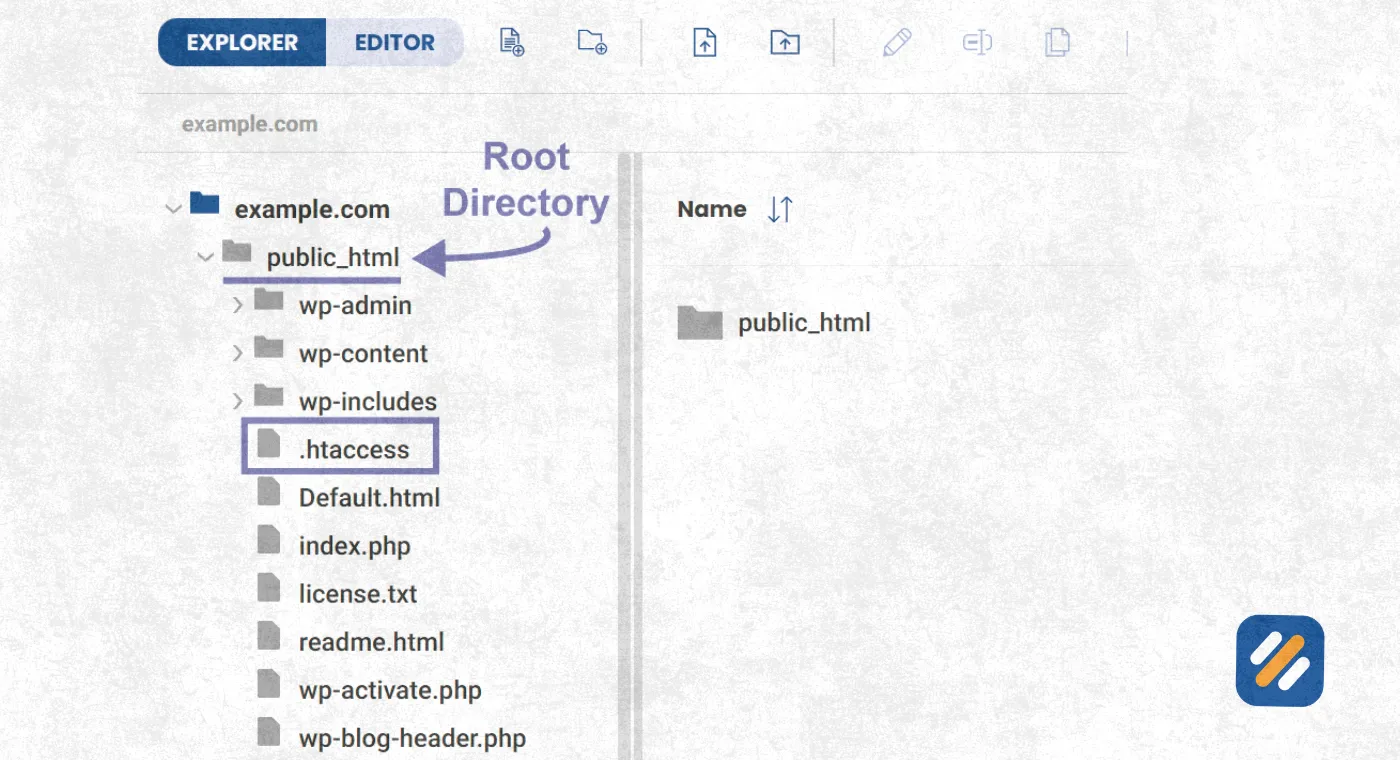
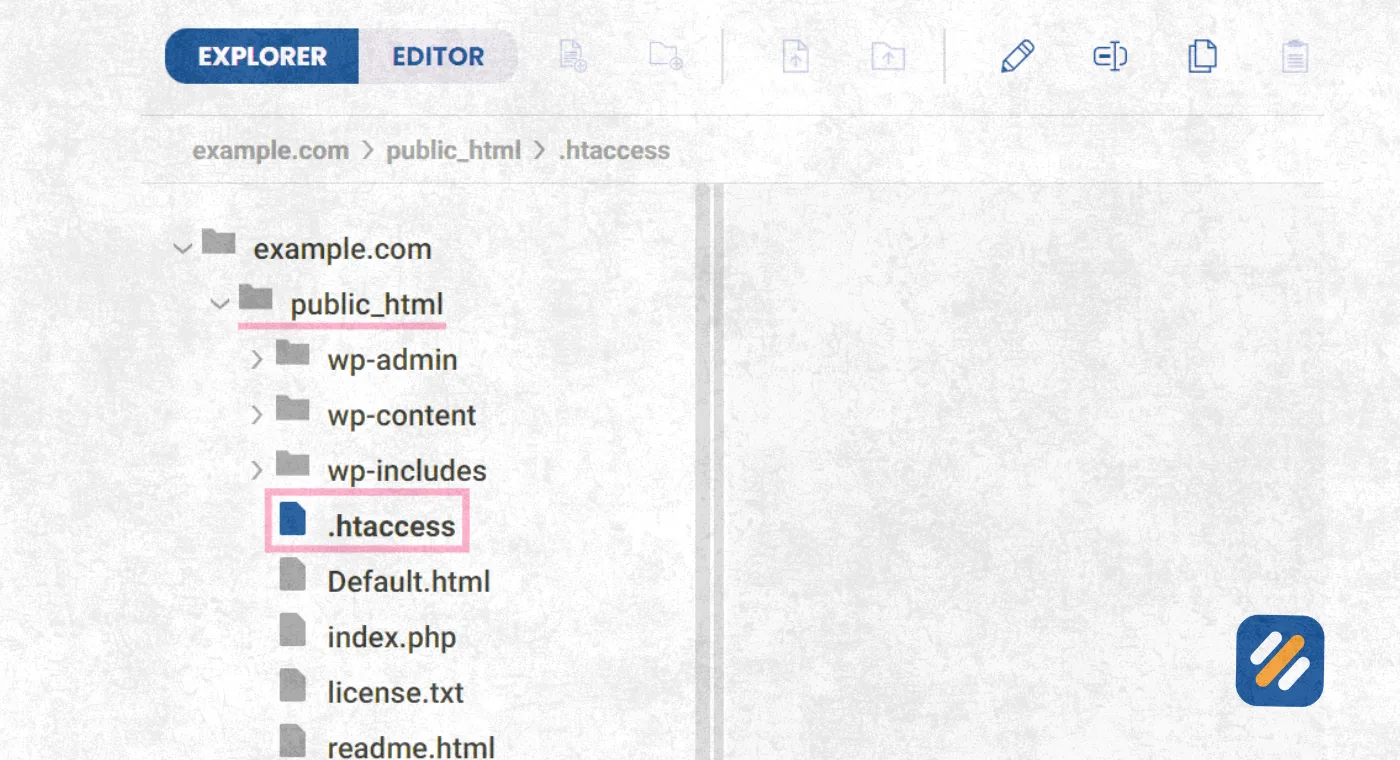
On a typical hosting account, the .htaccess file sits in the root of your website, usually the public_html folder, and it can also exist inside any subfolder that needs its own separate rules. WordPress sites keep their main copy in the same directory as wp-config.php.
The reason people struggle to find it comes down to one setting. Because the file name starts with a dot, both FTP clients and file managers treat it as a hidden system file by default.
In cPanel File Manager: open Settings in the top right corner and turn on "Show Hidden Files (dotfiles)"
In FileZilla or another FTP client: go to the Server menu and select "Force showing hidden files"
Via SSH: run ls -la inside your root directory to list every file, including hidden ones
4 How to Create a .htaccess File
Knowing how to create a htaccess file properly matters more than most guides admit, because one stray character can take an entire website offline. Here is the process our own server team follows for every client account:
Step 1: Check if one already exists first. Show hidden files in your file manager before creating a new one. Most Apache installations, and every WordPress site, already generate a basic htaccess file automatically.
Step 2: Create a plain text file named .htaccess. In cPanel File Manager, click "New File" and type .htaccess as the full name. On a Windows computer, you may need to type .htaccess. with a trailing dot, since Windows blocks file names that start with a dot.
Step 3: Add your rules using plain text only. Never use Microsoft Word or a rich text editor. Use Notepad, VS Code, or the built in cPanel code editor so no hidden formatting characters are saved into the file.
Step 4: Set the correct file permissions. Set permissions to 644. Anything more open, such as 777, is a security risk that a bad actor can exploit to rewrite your entire site's behavior.
Step 5: Upload it and test one rule at a time. Upload the file to the correct folder, then load your site in an incognito window. Add rules gradually and test after each one, rather than pasting twenty lines at once.
💡 Pro Tip: Always download and save a copy of your existing htaccess file before editing it. If a new rule breaks the site, you can restore the working version in seconds instead of troubleshooting under pressure.
5 The WordPress .htaccess File Explained
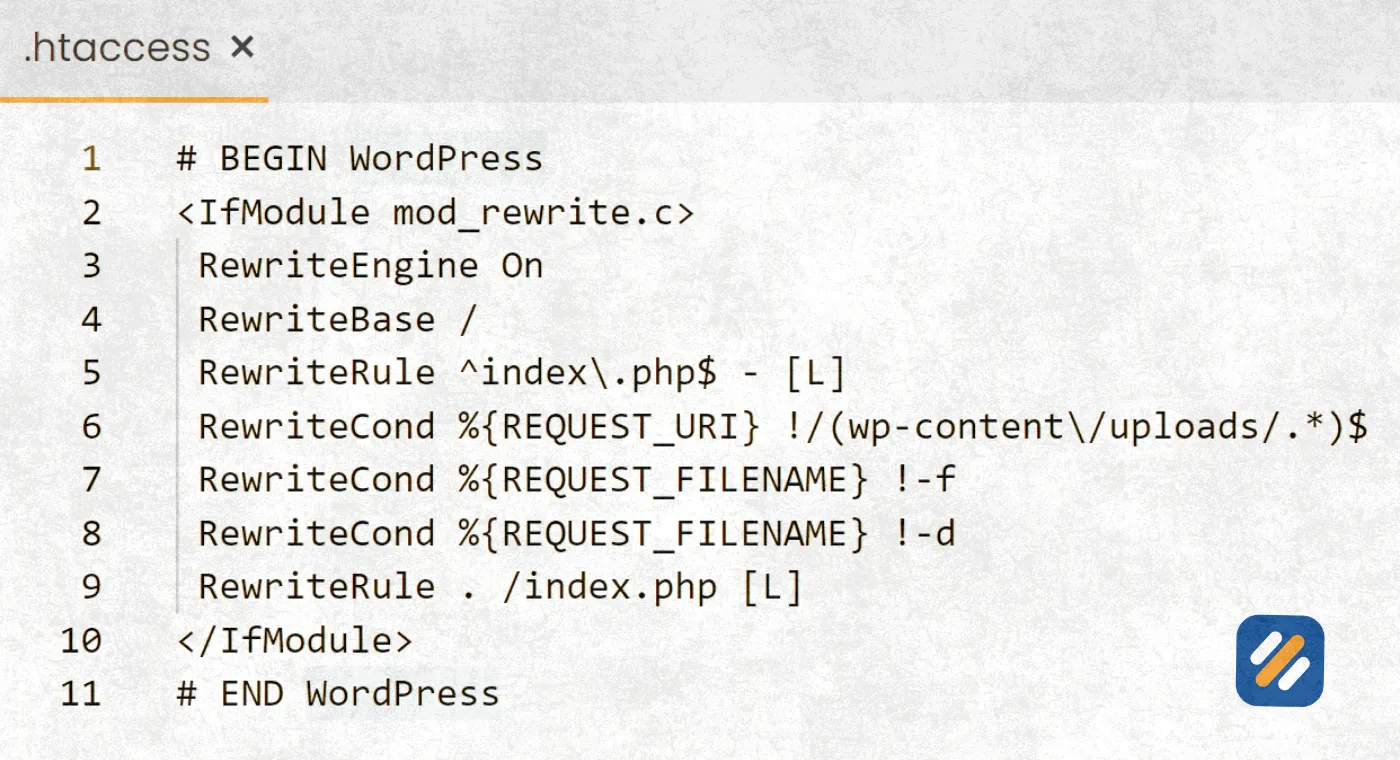
The wordpress htaccess file is what quietly makes clean, readable URLs like yoursite.com/blog/post-title possible instead of the default yoursite.com/?p=123 structure. WordPress writes this file automatically the first time you save your permalink settings.
A standard WordPress htaccess file looks similar to this, sitting between two comment markers WordPress uses to recognize its own block:
- # BEGIN WordPress marks the start of the WordPress managed rules
- RewriteEngine On activates Apache's URL rewriting module
- RewriteRule directives quietly route every request through index.php
- # END WordPress closes the block
If your permalinks suddenly stop working after a plugin update or a server migration, going to Settings, then Permalinks, then simply clicking Save Changes will usually regenerate this section without you touching a single line of code yourself.
6 Apache HTTPD, HTTP Compression and Custom HTTP Rules
The .htaccess file only works because of Apache HTTPD, the open source web server software that reads it on every request. If your site runs on Nginx or a similar server instead, htaccess rules are simply ignored, which is a common source of confusion for developers switching hosting environments.
For the file to work at all, your host must have AllowOverride set to All (or a specific list of directives) inside the main Apache HTTPD configuration. Shared hosting providers almost always enable this by default, while some managed cloud servers disable it for performance reasons.
Two capabilities worth understanding on their own:
💡HTTP Compression: A rule using mod_deflate compresses text based files such as HTML, CSS, and JavaScript before sending them to the browser, often cutting page weight by 60 to 80 percent and improving Core Web Vitals scores.
💡Custom HTTP responses: Directives like ErrorDocument 404 /not-found.html replace Apache's plain default error screen with a branded page, and custom response headers can add security protections such as X-Frame-Options directly from this file.
7 Dofollow, Nofollow and Referring Domain Control Inside .htaccess
This is the part most beginner guides skip entirely, and it is exactly where a htaccess file quietly touches your SEO. To be precise, dofollow and nofollow are HTML link attributes placed on an anchor tag, not something the htaccess file writes into your page. What the htaccess file does control is how link authority actually reaches your pages in the first place.
301 redirects preserve link equity: When an old URL earns backlinks from referring domains and you permanently redirect it with a 301 rule, the majority of that authority passes to the new URL instead of disappearing.
Canonical host rules stop authority splitting: A rule forcing all traffic from the non-www version to the www version (or the reverse) stops search engines from treating them as two separate pages with divided referring domain authority.
Referrer blocking protects your link profile: A RewriteCond rule checking the HTTP_REFERER header can block spam referral traffic and scraper bots that inflate your analytics and sometimes generate low quality backlinks pointing back at your domain.
Hotlink protection stops silent authority leaks: Blocking other domains from embedding your images directly protects your bandwidth and keeps your original content, not a copy on someone else's referring domain, as the version search engines credit.
In short, treat the htaccess file as the plumbing that decides where authority flows, while the dofollow or nofollow attribute on an individual link decides whether that authority is passed at all.
Reference Table
| Reference | What It Covers | Why It Is Trustworthy |
|---|---|---|
| Apache HTTP Server Docs | Official htaccess directive syntax and AllowOverride behavior | Published directly by the Apache Software Foundation |
| WordPress Developer Resources | How WordPress core generates and manages its htaccess block | Maintained by the official WordPress.org development team |
| Google Search Central | How redirects and canonical URLs affect crawling and ranking signals | Google's own guidance for webmasters and SEO practitioners |
| MDN Web Docs | HTTP status codes, headers, and browser caching behavior | Community reviewed reference used across the web industry |
8 Server Unable to Read htaccess File: Common Errors and Fixes
Seeing an error such as "server unable to read htaccess file" or a 500 Internal Server Error right after an edit almost always traces back to one of these causes:
A syntax mistake: A missing space, an unclosed bracket, or a typo in a directive name will stop Apache from reading the entire file, not just the broken line.
AllowOverride set to None: If your host has disabled overrides at the server level, no htaccess rule will ever take effect no matter how correct it is.
Incorrect file permissions: Permissions set too restrictively, such as 000 or 600 without server access, can block Apache itself from reading the file.
A missing required module: Rules that depend on mod_rewrite or mod_deflate will fail silently if that Apache module is not enabled on the server.
Hidden encoding issues: Files saved from Word processors or with the wrong character encoding often carry invisible characters that break parsing.
The fastest fix is almost always to rename the file temporarily, for example to .htaccess_disabled, reload the site to confirm it comes back online, then reintroduce your rules one section at a time until you isolate the exact line causing the failure.
9 3 Tips From Our Server Team
💡 Pro Tip Comment everything. Start each rule block with a # line explaining why it exists, so six months from now you or a teammate is not guessing.
💡 Pro Tip Keep one rule per line. Combining multiple redirects on a single line makes future debugging painfully slow.
💡 Pro Tip Test on staging first. A staging copy of your site lets you break things safely before any rule touches your live traffic.
10 When to Bring in Professional Help
A htaccess file is small, but a single misplaced character can take a live website offline in seconds, block search engines from crawling an entire section of a site, or quietly strip authority from pages that took years to build. For a quick redirect on a personal blog, editing it yourself is perfectly fine. For anything touching site wide redirects, WordPress migrations, security hardening, or SEO controlled redirects across hundreds of URLs, the margin for error gets a lot smaller.
Our server and hosting team configures, audits, and repairs htaccess files for businesses every week, from fixing a single broken redirect to rebuilding a full rule set after a site migration. If you would rather have it done correctly the first time than troubleshoot a broken site at midnight, that is exactly the kind of work we handle.
11 Need Your .htaccess File Configured the Right Way?
From redirects and WordPress migrations to fixing a broken 500 error, our server management team sets up and secures your htaccess file so your site stays fast, safe, and correctly ranked.
[Get Our Services →]
Join 1,000+ business owners and bloggers who get one actionable SEO tip every week — straight to their inbox. Free forever.
Get Free Weekly Tips →