- Total blocking time measures how long your page’s main thread is blocked and unable to respond to user input during page load
- Any JavaScript task running longer than 50 milliseconds is considered a Long Task and contributes to your TBT score
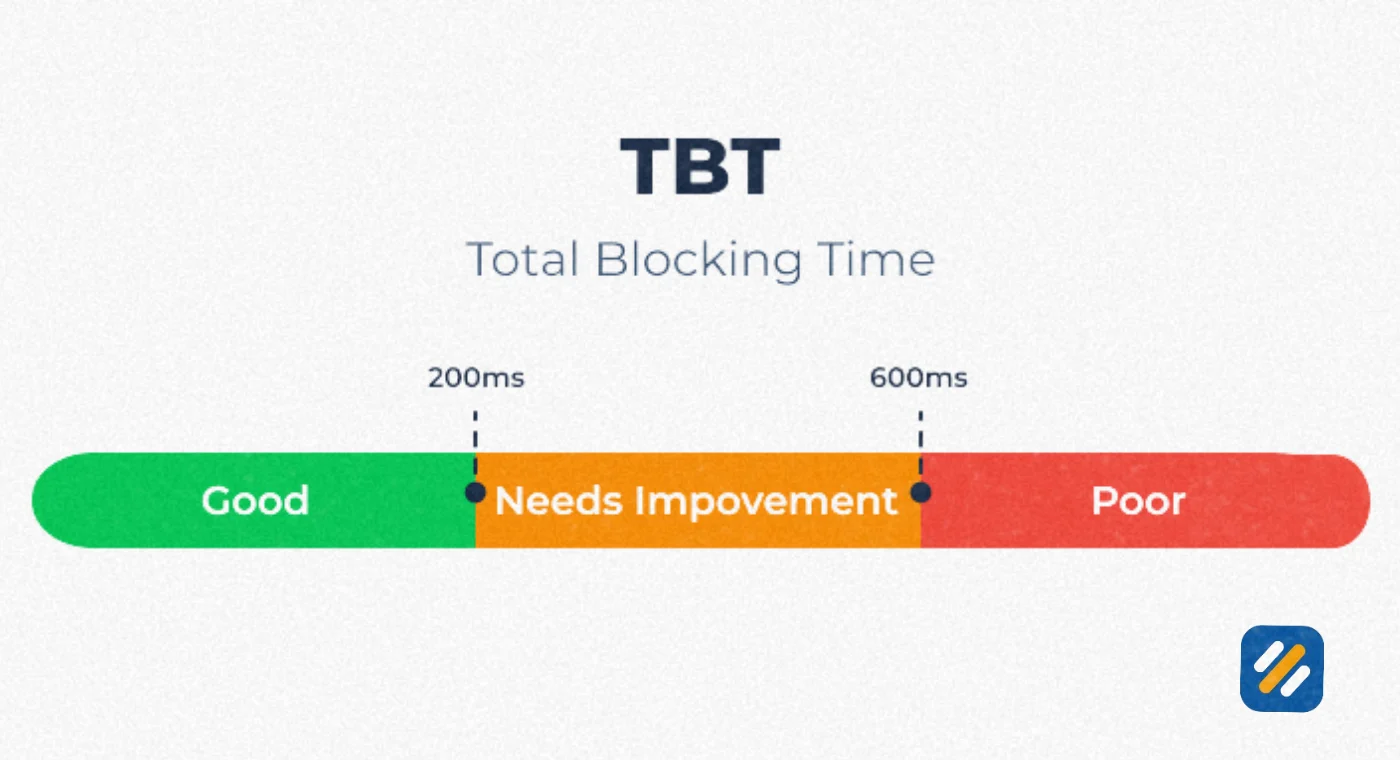
- A good total blocking time score in Lighthouse is under 200 milliseconds on average mobile hardware
- TBT accounts for 30% of your Lighthouse performance score, making it the single highest weighted metric to optimise
- The fastest way to improve total blocking time is to reduce, defer, or split heavy JavaScript that runs during page load
1 What Is Total Blocking Time and Why It Matters More Than Most SEOs Realise
If you have ever run a Lighthouse audit and seen a poor performance score despite your page loading visually fast, total blocking time is almost always the reason.
Total blocking time, commonly abbreviated as TBT, measures the total amount of time between First Contentful Paint and Time to Interactive during which your page’s main thread was blocked long enough to prevent a user from interacting with it. In plain English, it measures how long your page looks ready but is not actually ready.
Here is what that means in practice. Your page paints content on screen, the user sees it and tries to click a button or tap a link, but nothing happens. The browser is busy processing JavaScript in the background. That gap between visual readiness and actual interactivity is what total blocking time captures.
I have audited dozens of WordPress and Next.js websites where the owner could not understand why their page felt slow despite a fast server and optimised images. In almost every case, the culprit was high TBT caused by unoptimised JavaScript execution during page load. Fixing TBT transformed both the user experience and the Lighthouse score in ways that image optimisation alone never could.
Google considers TBT one of its most important lab performance metrics because it directly correlates with how responsive a page feels to real users. A page with high TBT feels sluggish and broken even when it loads quickly by other measures.
2 Total Blocking Time Meaning | How TBT Is Actually Calculated
Understanding the total blocking time meaning requires understanding one core concept: the main thread.
Your browser uses a single main thread to handle almost everything that happens on a webpage. Parsing HTML, executing JavaScript, applying CSS styles, processing user clicks and keyboard inputs, rendering visual updates. All of it goes through this one thread.
The problem is that the main thread can only do one thing at a time. When a JavaScript task runs on the main thread, the browser cannot simultaneously respond to a user’s click or tap. If that task runs for a long time, the user is left waiting with no visible response.
Google defines any task running longer than 50 milliseconds as a Long Task. The portion of a Long Task that exceeds 50 milliseconds is called the individual blocking time for that task. Add up the individual blocking times for every Long Task that occurs between First Contentful Paint and Time to Interactive and you get your page’s total blocking time.
Here is a concrete example. Imagine five tasks running on the main thread during page load
| Task | Duration | Blocking Time |
|---|---|---|
| Task 1 | 250 ms | 200 ms |
| Task 2 | 90 ms | 40 ms |
| Task 3 | 35 ms | 0 ms (under 50 ms threshold) |
| Task 4 | 30 ms | 0 ms (under 50 ms threshold) |
| Task 5 | 155 ms | 105 ms |
| Total | 560 ms | 345 ms TBT |
Tasks 3 and 4 do not contribute to TBT at all because they finish in under 50 milliseconds. Only the excess time beyond 50 milliseconds from the three Long Tasks counts. This is why a page can have 560 milliseconds of total task time but only 345 milliseconds of actual total blocking time.
3 What Is a Good Total Blocking Time Score in Lighthouse
Google Lighthouse uses TBT as one of its six core performance metrics. According to web.dev, the official Google developer resource, here are the TBT score thresholds you need to know:
| TBT Score | Time Range | What It Means |
|---|---|---|
| Good | Under 200 ms | Excellent interactivity, green in Lighthouse |
| Needs Improvement | 200 ms to 600 ms | Noticeable delays, users may feel sluggishness |
| Poor | Over 600 ms | Significant interactivity issues, red in Lighthouse |
GTmetrix uses slightly different thresholds that are worth knowing if you test with that tool
| GTmetrix Rating | TBT Range |
|---|---|
| Good | Under 150 ms |
| OK | 150 ms to 224 ms |
| Longer than recommended | 224 ms to 350 ms |
| Much longer than recommended | Over 350 ms |
The most important number to know is this. TBT accounts for 30% of your overall Lighthouse performance score. No other single metric carries as much weight. This means improving your total blocking time score will have a bigger impact on your overall performance score than improving any other individual metric.
For WordPress websites, a TBT under 200 milliseconds is achievable on most pages with proper JavaScript optimisation. For JavaScript-heavy frameworks like Next.js, achieving under 200 milliseconds requires more deliberate architectural decisions.
4 What Causes High Total Blocking Time
High total blocking time almost always comes down to one root cause: too much JavaScript running on the main thread during page load. But the specific sources of that JavaScript vary significantly between website types.
Here are the most common causes of high TBT I encounter when auditing client websites
Render-blocking JavaScript. Scripts loaded without async or defer attributes force the browser to stop parsing HTML and execute the script immediately. Each of these scripts adds blocking time before the page can even begin rendering content.
Heavy third-party scripts. Analytics platforms, chat widgets, advertising networks, social media embeds, and marketing tools all load JavaScript that runs on your main thread. A single poorly optimised chat widget can add hundreds of milliseconds to your TBT without you writing a single line of code yourself.
Large JavaScript bundles. When all your JavaScript is bundled into one large file that loads at page start, the browser must parse and execute the entire bundle before becoming interactive. Bundles over 300 kilobytes are a common cause of TBT scores above 600 milliseconds.
Unused JavaScript. Most JavaScript frameworks ship code for features that are not used on every page. When the browser downloads and parses this unused code, it contributes to TBT even though it does nothing for the current page.
Excessive DOM size. Pages with more than 1,500 DOM nodes take longer for the browser to process during rendering, which contributes to main thread work and therefore TBT.
Poorly optimised WordPress plugins. Each WordPress plugin can add JavaScript to your front end. A site with twenty plugins loading JavaScript simultaneously is almost guaranteed to have a poor TBT score regardless of how fast the server is.
5 Total Blocking Time Lighthouse | How to Measure Your TBT Score
The most reliable and widely used way to check total blocking time in Lighthouse is through one of three free tools:
Google PageSpeed Insights runs a Lighthouse audit directly from Google’s servers and shows your TBT score alongside all other Core Web Vitals. Go to pagespeed.web.dev, enter your URL, and find TBT in the Performance section. The advantage of PageSpeed Insights over running Lighthouse locally is that it uses a standardised network connection and device profile, giving you scores that are more representative of what Google sees.
Chrome DevTools Lighthouse. Open Chrome, navigate to your page, press F12 to open DevTools, click the Lighthouse tab, select Performance, and click Analyse Page Load. This gives you a full Lighthouse report including your TBT score and the specific Long Tasks contributing to it. The Performance tab in DevTools also shows a visual timeline of main thread activity where you can see exactly which scripts are creating Long Tasks.
GTmetrix measures TBT as part of its performance report and uses it as a proxy for Interaction to Next Paint. GTmetrix’s report is particularly useful because it breaks down the specific audits contributing to your TBT alongside the metric score, making it easier to identify which fixes to prioritise.
How to check TBT quickly using Chrome DevTools:
Go to your page in Chrome. Open DevTools with F12. Click the Performance tab. Click the record button and reload the page. Stop recording after the page loads. Look for red bars in the main thread timeline. Each red bar is a Long Task contributing to your total blocking time.
6 How to Improve Total Blocking Time | The Complete Fix Guide
Improving total blocking time requires reducing the amount of blocking JavaScript your page executes during load. Here are the specific fixes ranked by impact:
Fix 1: Defer or async non-critical JavaScript
Any JavaScript that does not need to run before the page becomes interactive should be loaded with the defer or async attribute. Defer tells the browser to download the script in parallel but only execute it after the HTML is fully parsed. Async downloads and executes immediately but without blocking HTML parsing.
For WordPress users, WP Rocket’s file optimisation settings handle this automatically. For manually coded sites, add defer to all non-critical script tags.
Fix 2: Remove or delay third-party scripts
Audit every third-party script loading on your page. For each one, ask whether it is essential for the initial page experience. Chat widgets, social share buttons, and marketing pixels rarely need to load before the user can interact with the page.
Load these scripts after the page becomes interactive using the window.onload event or a JavaScript facade that only loads the real script when the user interacts with the placeholder element.
Fix 3: Split large JavaScript bundles
Instead of loading one large JavaScript bundle, split your code into smaller chunks that load only when needed. This technique, called code splitting, is built into modern bundlers like Webpack and Vite and is a core feature of Next.js.
Fix 4: Reduce unused JavaScript
Run a Coverage audit in Chrome DevTools to see what percentage of your loaded JavaScript is actually being used on each page. Remove or conditionally load code that is not used on the current page.
Fix 5: Break up Long Tasks
If you have custom JavaScript that creates Long Tasks, break it into smaller chunks using setTimeout or the scheduler.yield API. This allows the browser to process user input between chunks rather than blocking the main thread for the full duration of the task.
7 Total Blocking Time in Next.js | Why Framework Sites Struggle and How to Fix It
Total blocking time in Next.js websites deserves its own discussion because JavaScript-heavy frameworks create TBT challenges that traditional WordPress sites do not face in the same way.
Next.js applications ship significant amounts of JavaScript to the browser to enable client-side interactivity and navigation. Even with server-side rendering, the hydration process, where Next.js attaches JavaScript event handlers to the server-rendered HTML, can create Long Tasks that push TBT well above the 200 millisecond threshold.
Here are the specific fixes for improving total blocking time in Next.js
Use dynamic imports for heavy components. Next.js supports dynamic imports with the next/dynamic module. Any component that is not visible on initial page load, such as modals, carousels, or below-the-fold features, should be loaded dynamically rather than in the main bundle.
Enable the Next.js Script component for third-party scripts. The next/script component gives you precise control over when third-party scripts load. Use strategy="lazyOnload" for analytics and marketing scripts that do not need to run immediately.
Analyse your bundle with next-bundle-analyzer. This tool shows you exactly which packages are contributing the most to your JavaScript bundle size. Replacing large libraries with smaller alternatives is often the fastest path to significant TBT reduction.
Enable React Server Components where possible. Server components render on the server and send only HTML to the browser, eliminating the client-side JavaScript entirely for those components. Moving non-interactive UI elements to server components directly reduces the JavaScript that needs to hydrate on the client.
8 TBT vs INP vs TTI | Understanding How These Metrics Relate
Total blocking time is often confused with two closely related metrics. Understanding how they differ helps you use each one correctly.
| Metric | What It Measures | Where Measured | Google’s Use |
|---|---|---|---|
| Total Blocking Time (TBT) | Sum of blocking time from Long Tasks between FCP and TTI | Lab only (Lighthouse) | Proxy metric for INP in lab environments |
| Interaction to Next Paint (INP) | Time from user interaction to next visual update | Field (real users) | Core Web Vital, measures actual responsiveness |
| Time to Interactive (TTI) | When the page becomes reliably interactive | Lab only | Used as endpoint for TBT measurement |
The key relationship to understand is that TBT is a lab proxy for INP. Google cannot accurately measure INP in a lab environment because INP requires real user interactions. TBT correlates strongly with INP scores, meaning a page with low TBT almost always has good INP performance in the field.
This is why Google recommends optimising for INP as your primary goal and using TBT as the lab signal that tells you whether your INP optimisation work is likely to be effective.
9 3 Expert Tips to Reduce Total Blocking Time Faster
Tip 1: Audit third-party scripts first, not your own code
In my experience, third-party scripts contribute more to high TBT on small business and WordPress websites than any first-party JavaScript. Before spending hours optimising your own code, run a Lighthouse audit and check the “Reduce the impact of third-party code” section. If third-party scripts account for more than 100 ms of blocking time, delaying them is your fastest win.
Tip 2: Test TBT on mobile, not desktop
Google’s TBT threshold of under 200 ms is set for average mobile hardware, which is significantly slower than a desktop computer. A page that scores 80 ms TBT on desktop can easily score 600 ms on mobile. Always test your TBT using the mobile setting in PageSpeed Insights or Lighthouse because that is what Google uses for ranking signals.
Tip 3: Fix TBT before applying for Google AdSense
If you are planning to monetise your blog with AdSense, high TBT will work against you twice. First, ad scripts themselves add to TBT. Second, a poor Core Web Vitals score from high TBT reduces organic traffic before you even have ads to monetise. Fix TBT first, then add ad scripts, and load them with the async attribute to minimise their impact.
10 Conclusion
Total blocking time is the performance metric that separates websites that feel fast from websites that only look fast. A page can paint content on screen in under one second and still frustrate users because high TBT makes it unresponsive for several seconds after that visual load.
The fix is almost always about JavaScript. Defer what you can, remove what you do not need, split what must run, and delay third-party scripts until after the page is interactive.
Run a Lighthouse audit on your most important pages today. Check your TBT score. If it is above 200 milliseconds, the specific Long Tasks causing it are shown directly in the Lighthouse report alongside the scripts responsible.
One afternoon of JavaScript optimisation can transform a poor TBT score into a good one and the improvement in both user experience and Lighthouse performance score will be immediately visible.
Have a question about your specific TBT score or what is causing it? Drop a comment below and I will help you work out the right fix.
Join 1,000+ business owners and bloggers who get one actionable SEO tip every week — straight to their inbox. Free forever.
Get Free Weekly Tips →