
- Advanced Google search lets you filter and refine results far beyond what a basic search query can do
- Google search operators are special commands you type directly into the search bar to get laser precise results
- SEO specialists use advanced search daily for competitor research, backlink prospecting, keyword discovery, and content gap analysis
- The Google Advanced Search page at google.com/advanced_search gives beginners a visual interface without needing to memorise operators
- Combining multiple search operators in one query is where the real power of advanced Google search unlocks
1 What Is Advanced Google Search and Why Most People Never Use It
Most people use Google the same way every day. They type a few words, scan the first three results, and move on. It works well enough for casual browsing. But when you need precise, targeted information, that basic approach wastes enormous amounts of time returning results that are close but not quite right.
Advanced Google search is a set of tools, filters, and commands that let you control exactly what Google shows you. Instead of throwing a broad query at Google and hoping for the best, you tell Google precisely what to include, what to exclude, which websites to search, what file types to return, and even what date range to filter by.
There are two ways to use advanced search in Google. The first is the Google Advanced Search page, which lives at google.com/advanced_search. This is a visual form interface where you fill in boxes and select dropdown options without needing to memorise any special syntax. The second and more powerful method is Google search operators, which are special characters and commands you type directly into the standard Google search bar.
In many years of doing SEO for clients across multiple industries, I use advanced Google search every single day. It is not just a power user trick. It is a fundamental research skill that saves hours every week and surfaces information that basic searches completely miss.
2 How to Use the Google Advanced Search Page | Step by Step
If you are new to advanced search, the Google Advanced Search page is the best starting point. It requires no memorisation and gives you immediate access to the most commonly used filters through a clean visual interface.
To access it, go to google.com/advanced_search in any browser. You do not need to be logged into a Google account.
The page is divided into two sections
Find pages with: This section controls which words must appear, which exact phrase to match, which words are optional, and which words to exclude entirely. Fill in only the boxes relevant to your search. You do not need to complete all of them.
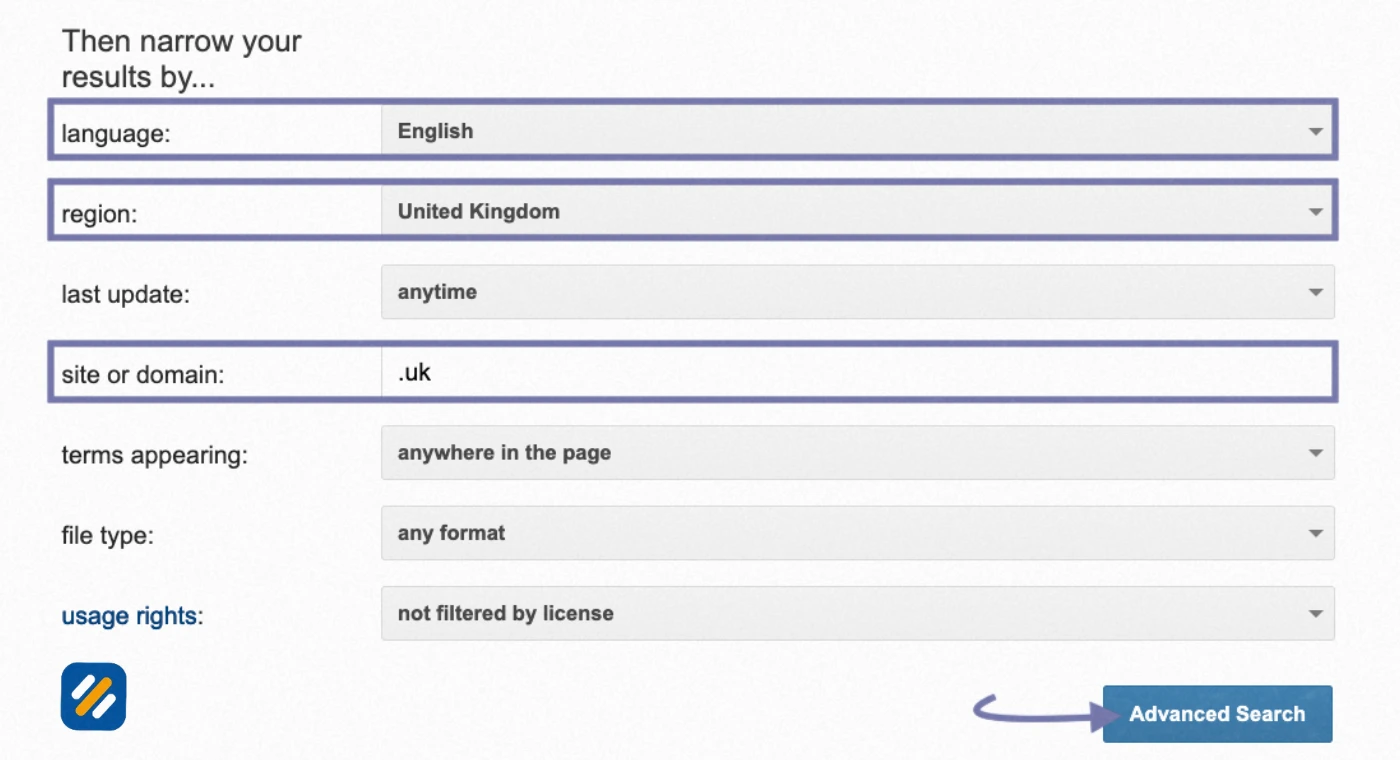
Then narrow your results by: This section gives you dropdown menus to filter by language, region, last update date, site or domain, where the terms appear on the page, file type, and usage rights.
Here is how each filter works in practice
| Filter | What It Does | Example Use |
|---|---|---|
| All these words | Every word must appear somewhere on the page | keyword research free tools beginners |
| This exact phrase | Finds pages with the exact phrase in that order | “how to do keyword research” |
| Any of these words | At least one of the listed words must appear | Ahrefs OR SEMrush OR Moz |
| None of these words | Excludes pages containing these words | seo tools -paid -subscription |
| Language | Only returns pages in the selected language | English only results |
| Region | Filters results by country | United Kingdom results only |
| Last update | Shows only recently updated pages | Past year for freshness |
| Site or domain | Searches within one website only | site:nytimes.com |
| Terms appearing | Controls where on the page the keyword must appear | In the title only |
| File type | Returns only specific file formats | PDF, DOC, XLS |
| Usage rights | Filters by Creative Commons license | Free to use and share |
Once you have filled in your filters, click the Advanced Search button and Google applies all your selected criteria simultaneously.

3 Google Search Operators | The Complete List Every SEO Specialist Uses
Google search operators are the keyboard shortcut version of advanced search. Instead of using the visual form, you type special commands directly into the search bar. They are faster, more flexible, and allow you to combine multiple conditions in a single query.
Here is the complete list of working Google search operators in 2026
| Operator | What It Does | Example |
|---|---|---|
| “quotes” | Finds exact phrase match | “advanced google search operators” |
| site: | Searches within one specific domain | site:ahrefs.com |
| intitle: | Finds pages with keyword in the title | intitle:keyword research |
| allintitle: | All words must appear in the title | allintitle:best free seo tools |
| inurl: | Finds pages with keyword in the URL | inurl:write-for-us |
| allinurl: | All words must appear in the URL | allinurl:seo beginner guide |
| intext: | Keyword must appear in the body text | intext:domain authority |
| allintext: | All keywords must appear in body text | allintext:technical seo checklist |
| filetype: | Returns specific file formats only | seo checklist filetype:pdf |
| related: | Finds websites similar to a given domain | related:moz.com |
| cache: | Shows Google’s cached version of a page | cache:seowithRoman.com |
| OR | Either keyword can appear | SEMrush OR Ahrefs |
| AND | Both keywords must appear | SEO AND content marketing |
| minus (-) | Excludes a word from results | seo tools -paid |
| asterisk (*) | Wildcard placeholder for any word | best * seo tools |
| ( ) | Groups operators together in one query | (intitle:seo OR intitle:search) site:forbes.com |
| AROUND(n) | Two words appear within n words of each other | SEO AROUND(3) beginners |
| before: | Returns pages published before a date | seo guide before:2024-01-01 |
| after: | Returns pages published after a date | seo trends after:2025-01-01 |
| define: | Shows dictionary definition instantly | define:search intent |
| weather: | Shows weather for a location | weather:London |
| map: | Returns map results for a location | map:New York, USA |
4 How Advanced Google Search Works for SEO | Real Use Cases
This is where advanced search stops being an interesting trick and starts being a genuine competitive advantage. Here are the exact ways SEO specialists use advanced Google search in their daily work:
Competitor Content Research
To understand what content a competitor has published on a specific topic, use the site: operator combined with your keyword. For example, typing “keyword research site:ahrefs.com” shows every page on the Ahrefs website that mentions keyword research. This instantly reveals how deeply a competitor covers a topic you are considering writing about.
Finding Guest Post Opportunities
One of the most time-saving uses of advanced search for link building is finding “write for us” pages across relevant websites. The query “seo inurl:write-for-us” returns websites in the SEO space that actively invite guest contributors. This is far more efficient than searching for guest post opportunities manually.
Discovering Content Gaps
Use the intitle: operator to see how many articles already rank for a keyword with that keyword in the title. “allintitle:advanced google search” shows you the exact number of competing pages optimised for that phrase. A lower number means less competition and a higher chance of ranking.
Finding Unlinked Brand Mentions
Type “allintext:your brand name” combined with the minus operator to exclude your own domain. For example: “allintext:SEOWithRoman -site:seowithroman.com” shows every page that mentions your brand name but does not link back to your site. These are free backlink opportunities that only need a polite outreach email to convert.
Locating Broken Backlink Opportunities
Combine site: and a competitor domain with a topic keyword to find their most linked to content. Then use the related: operator to find similar sites in your niche. This combination is the foundation of a complete broken link building campaign built entirely from free Google searches.
5 Advanced Google Image Search | How to Search Images Like a Professional
Advanced Google image search is a separate but equally powerful tool that most people never explore beyond basic image queries. You can access the advanced image search at google.com/advanced_image_search.
The advanced image search page lets you filter image results by
- Size: icon, small, medium, large, extra large, or custom dimensions
- Aspect ratio: square, tall, wide, or panoramic
- Colour: full colour, black and white, transparent, or specific colour
- Type: face, photo, clip art, line drawing, or animated
- Time: any time, past day, week, month, or year
- Usage rights: labeled for reuse or reuse with modification
- Site or domain: images from one specific website only
- File type: JPG, PNG, GIF, BMP, SVG, WebP, ICO, or RAW
For SEO professionals, the most valuable use of advanced Google image search is finding images of your competitors’ products, infographics, or branded assets that have been used on other websites without proper attribution. You can then use this data to identify websites discussing your niche and approach them for links or partnerships.
Reverse image search is another advanced Google feature worth knowing. Click the camera icon in the Google Images search bar and upload any image to find every page on the web where that image appears. SEO professionals use this to track where their infographics are being shared and whether those sites are linking back correctly.
6 Advanced Google Search for Keyword Research | The Technique Most SEOs Miss
Most beginners go straight to keyword tools for their research. Experienced SEO specialists use advanced Google search first because it shows what Google is already ranking and what searchers are actually finding, not just what a database estimates.
Here is a four-step keyword research process using only advanced Google search
Step 1: Find real search terms using Google Autocomplete. Start typing your seed keyword into Google and stop before pressing Enter. Google’s autocomplete suggestions are real searches from real users. Every suggestion is a validated keyword with confirmed search demand.
Step 2: Use intitle: to check competition. Take your best autocomplete keyword and search “allintitle:your keyword phrase.” Count the number of results. Under 1,000 results suggests low competition. Over 10,000 suggests the keyword is saturated for a new website.
Step 3: Find related searches at the bottom of the results page. After running any search, scroll to the bottom of the Google results page and look at the “Related searches” section. Each one is a keyword variation you can validate and potentially target.
Step 4: Use the after: operator to find trending content. Search “your keyword after:2025-01-01” to see only the most recent content Google is indexing for that topic. Articles that are ranking well despite being recent signal a keyword where Google rewards freshness, meaning new content from you can rank faster.
7 How to Use Advanced Search to Find Backlink Opportunities
Link building is where advanced Google search delivers some of its most powerful and underused applications. These operator combinations are ones I use personally when building backlink strategies for client websites.
Finding resource pages: Resource pages are lists of helpful links that websites maintain for their readers. They are among the easiest pages to earn a backlink from because the site owner has already signalled they want to link to external resources. Search “your niche + inurl:resources” or “your niche + intitle:useful links” to find them instantly.
Finding roundup posts: Many blogs publish weekly or monthly roundups linking to the best content in their niche. Search “your niche + intitle:roundup” or “your niche + intitle:best of” to find active roundup publishers who may include your content.
Finding broken links on competitor pages: Combine the site: operator with specific content topics to find pages on competitor websites that link to external resources. Then check whether those external links are still active. A broken link on a well-trafficked competitor page is an opportunity to suggest your content as a replacement.
Finding interview and podcast opportunities: Search “your niche + inurl:podcast” or “your niche + intitle:interview with” to find shows and publications that feature experts in your field. These are high-quality backlinks that also drive direct referral traffic.
8 Advanced Google Search Operators for SEO Auditing
Beyond research, Google search operators are a legitimate technical SEO audit tool. Here is how to use them to diagnose issues on any website:
| SEO Problem | Operator to Use | What to Check |
|---|---|---|
| Indexation check | site:yourdomain.com | Total number of pages Google has indexed |
| Duplicate title tags | allintitle:your exact title tag | If multiple pages have the same title Google may have indexed both |
| Subdomain indexation | site:blog.yourdomain.com | Checks if a specific subdomain is indexed |
| Thin content pages | site:yourdomain.com -inurl:blog | Reveals pages outside your blog that may be thin |
| Secure vs non-secure | site:http://yourdomain.com | Checks if Google is indexing non-HTTPS versions |
| Crawl errors | cache:yourdomain.com/specific-page | Checks if Google has a cached version of a specific page |
| Competitor page count | site:competitordomain.com | Estimates how many pages a competitor has indexed |
| Brand mention without link | allintext:your brand -site:yourdomain.com | Unlinked brand mentions to pursue as backlinks |
Running these checks takes under ten minutes and gives you a real-time snapshot of how Google currently sees your website, without needing any paid tool.
9 3 Expert Tips to Use Advanced Google Search Like a Senior SEO Specialist
Tip 1: Combine operators for surgical precision.
Never use a single operator when two or three together will get you exactly what you need. For example “intitle:seo guide site:forbes.com after:2025-01-01” returns only SEO guides published on Forbes in the past year with that phrase in the title. That level of specificity is impossible with a basic search.
Tip 2: Use the cache: operator before outreach.
Before emailing a website about a guest post or backlink, run “cache:theirdomain.com/specific-page” to check when Google last crawled that page. A cache date older than 60 days means the site has low crawl frequency and lower overall authority. It helps you prioritise which sites are worth your outreach time.
Tip 3: Build a personal search operator library.
Every time you discover an advanced search combination that surfaces genuinely useful results for your niche, save it in a simple document. Over time you build a personalised toolkit of searches tailored to your specific industry and competitors. This compounding library becomes one of your most valuable research assets.
10 Advanced Search vs Basic Google Search | When to Use Each
| Situation | Use Basic Search | Use Advanced Search |
|---|---|---|
| Quick factual lookup | Yes | No |
| Competitor content analysis | No | Yes, use site: operator |
| Finding guest post opportunities | No | Yes, use inurl:write-for-us |
| Checking page indexation | No | Yes, use site:yourdomain.com |
| General topic exploration | Yes | No |
| Finding exact phrase matches | No | Yes, use quotation marks |
| Keyword competition analysis | No | Yes, use allintitle: |
| Image research with filters | No | Yes, use advanced image search |
| Finding unlinked brand mentions | No | Yes, use allintext: with minus |
| Locating downloadable resources | No | Yes, use filetype:pdf |
11 Conclusion
Advanced Google search is one of the most underused free tools available to any SEO specialist, researcher, or small business owner. Every operator in this guide is available to anyone with a Google search bar and zero budget.
The gap between someone who types basic queries into Google and someone who uses advanced search operators is not just a difference in technique. It is a difference in the quality of research, the efficiency of link building, and the depth of competitor intelligence they can access in any given hour.
Start with two or three operators from this guide today. The site: operator for competitor research, intitle: for competition analysis, and inurl: for guest post prospecting. Master those three before adding more. Within a week they will feel as natural as typing a regular search.
Every hour you save with advanced Google search is an hour you put back into creating content, building links, and growing your website.
Have a question about any of these advanced search techniques? Leave a comment below and I will answer it personally.
Join 1,000+ business owners and bloggers who get one actionable SEO tip every week — straight to their inbox. Free forever.
Get Free Weekly Tips →