- Google Images search lets you find images, search by image, and reverse search using a photo instead of text
- Google Lens powers all image based search on both desktop and mobile as of 2026
- You can search Google Images by uploading a photo, pasting a URL, dragging and dropping, or using a screenshot
- Reverse image search helps you find the original source of an image, identify objects, verify photos, and find similar visuals
- Optimising your website images for Google Images search is a genuine SEO traffic source most beginners completely ignore
1 What Is Google Images Search and Why More People Are Using It Than Ever
Most people think of Google search as something you do with words. Type a question, get an answer. But Google Images search turns that idea completely on its head.
Google Images is a dedicated search engine within Google that indexes billions of images from across the internet. It launched in 2001 after the Grammy Awards generated massive searches for Jennifer Lopez’s famous green dress and Google realised its text search could not satisfy visual queries. Today it processes billions of image searches every single day.
What has changed dramatically in recent years is how you can search Google Images. You are no longer limited to typing keywords into a search box. You can now search using a photo from your phone camera, a screenshot, an image URL, or by dragging and dropping a file directly into the search bar. This is what makes modern Google Images search genuinely powerful for everyday users, researchers, businesses, and SEO professionals alike.
In my many years of doing SEO, Google Images has consistently been an underestimated traffic source for clients. Websites that properly optimise their images regularly receive 15 to 30 percent of their total organic traffic directly from Google Images search results. Most website owners have no idea this traffic exists.
2 How Google Images Search Actually Works Behind the Scenes
Understanding how Google Images search works changes how you use it and how you optimise for it.
When you search for images on Google, you are not searching the live internet in real time. Google’s crawlers have already visited billions of webpages, read the images on those pages, and stored information about each image in Google’s index. When you type a search query, Google matches your words against everything it knows about indexed images including file names, alt text, surrounding page content, captions, and structured data.
When you search by image rather than by text, Google uses a technology called Google Lens. Lens analyses the visual content of the image itself using machine learning and computer vision. It identifies objects, colours, shapes, text within images, faces of public figures, landmarks, products, plants, animals, and more. It then matches those visual signals against its index to return relevant results.
Here is what your Google Images search results can include
| Result Type | What It Shows | When It Appears |
|---|---|---|
| Similar images | Visually related images from across the web | Always shown for image searches |
| AI Overviews | Google’s AI generated summary about the image topic | For informational queries |
| Webpage results | Sites where the same or similar image appears | Reverse image searches |
| Product results | Shopping listings for products matching the image | When image contains a product |
| Text within image | Translation or extraction of text found in the image | When image contains readable text |
| Identified objects | Named labels for objects Google recognises in the image | Object recognition searches |
| Related searches | Suggested search refinements based on the image | All image search types |
3 How to Search Google Images by Uploading a Photo | Step by Step
Searching Google Images by uploading a photo is one of the most useful features most people have never tried. Here is exactly how to do it on desktop and mobile.
On Desktop (Chrome, Firefox, Safari, Edge):
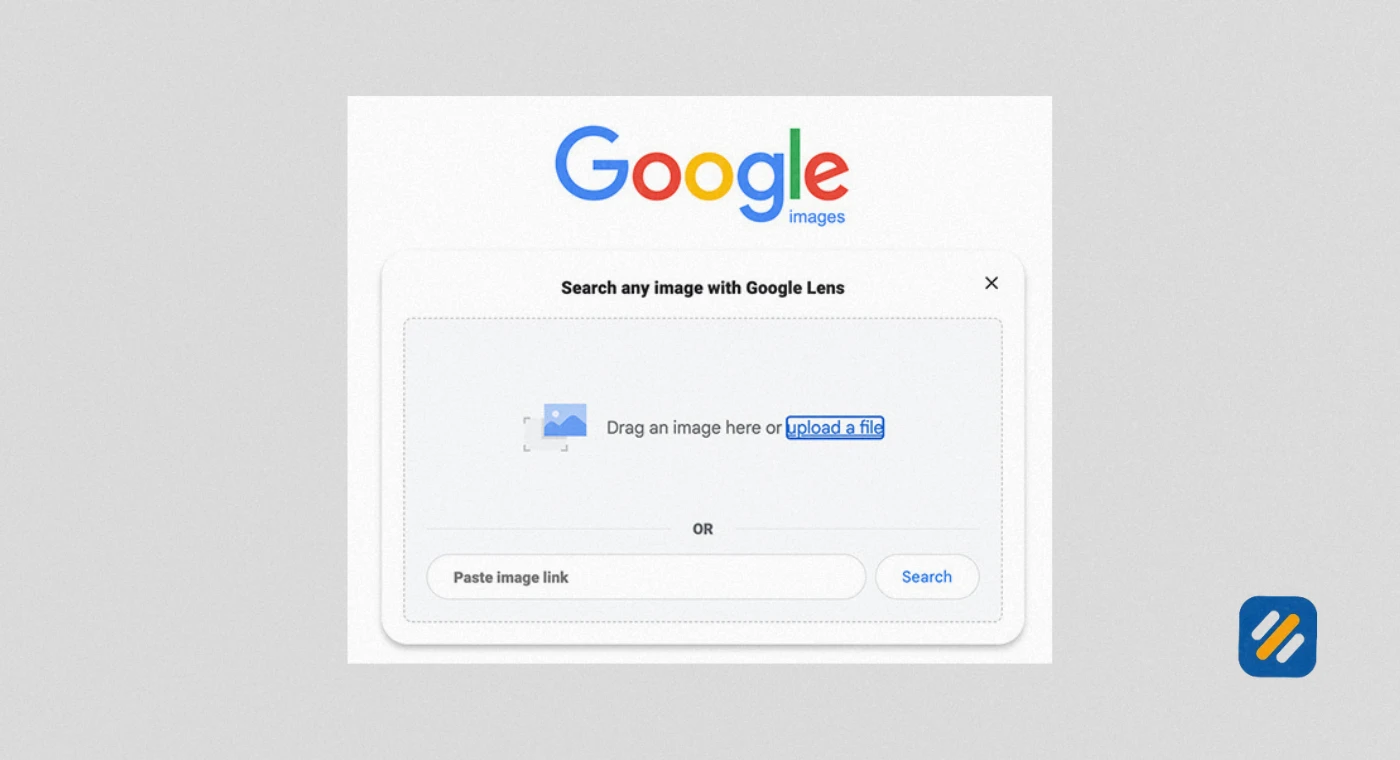
Go to google.com and click the camera icon inside the search bar. This opens the Google Lens panel. Click “Upload a file” and select any image from your computer. Google will immediately analyse the image and return results showing similar images, related websites, and identified objects or information about what is in the photo.
You can also drag and drop an image file directly from your desktop or file manager into the Google search bar. This triggers the same Lens analysis without needing to click anything.
On Mobile (Android and iPhone):
Open the Google app or go to google.com in your mobile browser. Tap the camera icon in the search bar. You will see three options: take a photo with your camera right now, upload an image from your camera roll, or search using Google Lens directly. On Android, Google Lens is also available as a standalone app and through the camera app on most devices.
Using an Image URL:
If you have found an image on a website and want to search for it without downloading it first, right-click the image in Chrome and select “Copy image address.” Then go to google.com, click the camera icon, and paste the URL into the “Paste image link” field. This is particularly useful for verifying whether an image has been used elsewhere on the internet.
4 Google Images Reverse Search | What It Is and Every Way to Use It
Reverse image search is the most powerful feature in Google Images search and the one most people only scratch the surface of.
In a normal search, you start with words and Google finds images. In a reverse image search, you start with an image and Google finds information, similar images, and websites connected to that image. You are essentially asking Google “what is this?” or “where did this come from?”
Here are the most valuable practical uses of Google Images reverse search
Verifying photos for authenticity. Journalists, researchers, and anyone wanting to fact-check images online can use reverse image search to find the original source of a photo and determine whether it has been taken out of context or misattributed.
Finding the original source of an image. If you have saved an image and forgotten where it came from, reverse image search almost always finds the original webpage, photographer, or publication it belongs to.
Identifying unknown objects, plants, or animals. Upload a photo of something you cannot identify and Google Lens will tell you what it is. This works remarkably well for plants, insects, architectural styles, artworks, and products.
Finding higher resolution versions. If you have a low quality version of an image you need in better quality, reverse image search often surfaces the same image in higher resolution from other sources.
Tracking unauthorised use of your own images. If you are a photographer, designer, or content creator, reverse image search lets you discover whether other websites are using your images without credit or permission.
Finding similar products for shopping. Upload a photo of a product you have seen in the real world and Google will often find the exact product or similar alternatives available for purchase online.
5 Google Images Advanced Search | Filters Most Users Never Know About
Standard Google Images search returns millions of results. Google Images advanced search lets you filter those results down to exactly what you need.
To access advanced image search, go to images.google.com, run any search, then click Settings and select Advanced search. Alternatively, after any image search you can use the filter buttons that appear below the search bar.
| Advanced Search Filter | What It Does | Best Used For |
|---|---|---|
| Image size | Filter by small, medium, large, or exact dimensions | Finding images for specific uses like wallpapers or web design |
| Aspect ratio | Filter by tall, square, wide, or panoramic | Social media images or specific layout requirements |
| Colour | Filter by specific colour, full colour, black and white, or transparent | Brand matching, design projects |
| Image type | Filter by photo, clip art, line drawing, animated GIF, or 3D object | Content creation, presentations |
| Usage rights | Filter by Creative Commons licence types | Finding images legally safe to use or share |
| Time | Filter by images indexed in the past day, week, month, or year | Finding recent images on a topic |
| Safe Search | Toggle between showing or filtering explicit content | Safe browsing for work or children |
| Region | Filter results by country of origin | Local or regional image research |
The usage rights filter deserves special attention. If you are looking for images to use on your own website or blog, filtering by Creative Commons licences shows you images that photographers and creators have made available for reuse. Always check the specific licence terms as some require attribution and some restrict commercial use.

6 How Google Images Search Works on Mobile With Google Lens
Google Lens is the technology that powers all image-based searching on mobile devices and it goes significantly further than what desktop image search offers.
When you open Google Lens on your phone and point it at something in the real world, it does not just take a photo. It analyses the live camera feed in real time and overlays information directly onto your screen. This is called augmented reality search and it represents the direction Google Images search is moving in 2026.
Here is what Google Lens can do beyond basic image search
Translate text in real time. Point your camera at a sign, menu, or document in another language and Lens translates it instantly on your screen without you needing to photograph or type anything.
Solve maths problems. Point your camera at a handwritten or printed equation and Lens provides the solution and working steps.
Identify and shop for products. Point your camera at any product in a shop or in someone’s home and Lens finds it online, shows pricing, and links to purchase options.
Read QR codes and barcodes. Lens reads these automatically without needing a separate app.
Search within screenshots. On Pixel phones and some Samsung devices, you can activate Lens directly on any screenshot saved to your phone and search for anything visible within it.
The practical implication for website owners and SEO specialists is significant. As more users search visually through Lens rather than typing keywords, having properly labelled, high quality images on your website becomes a genuine traffic acquisition strategy, not just an accessibility consideration.
7 How to Optimise Your Website Images for Google Images Search
This is the section that most Google Images guides completely skip, and it is the one with the most direct impact on your website traffic.
Google Images is a search engine in its own right. Pages that appear in Google Images results receive real visitors who click through to your website. For visual niches including food, fashion, travel, home decor, gardening, fitness, and education, Google Images can be a primary traffic source.
Here is exactly how to optimise your images for Google Images search
Use descriptive, keyword-rich file names. Before uploading any image, rename the file to describe what is in it. A file named “how-to-do-keyword-research-free-tools.jpg” will rank in Google Images for relevant searches. A file named “IMG_4782.jpg” will not rank for anything.
Write meaningful alt text for every image. Alt text is the text description of an image that lives in your HTML code. Google reads alt text as its primary signal for understanding what an image shows. Write alt text that describes the image naturally and includes your target keyword where relevant. Avoid keyword stuffing in alt text as Google can detect and penalise it.
Use high quality original images. Google Images consistently rewards original images over stock photos used by thousands of other websites. Taking your own photos or creating original graphics for your content gives Google a reason to rank your image over identical copies on competing sites.
Compress images without losing quality. Large image files slow down your page, which hurts both your regular SEO rankings and your Google Images rankings. Use tools like Smush or ShortPixel on WordPress to compress images automatically before they are served to visitors.
Add structured data for images. Using schema markup to label your images as products, recipes, articles, or other content types helps Google understand the context of your images and can unlock rich results in image search.
Place images near relevant text. Google uses the text surrounding an image as a signal for what the image shows. An image placed next to a paragraph discussing keyword research is more likely to rank for keyword research related image searches than the same image placed next to unrelated content.
8 Google Images Search API | What It Is and Who Needs It
The Google Images Search API is a developer-level tool that allows applications and websites to query Google Images programmatically and receive results in structured data format rather than through a web browser.
The official API is called the Custom Search JSON API and it includes image search functionality. Developers use it to build applications that need to display Google Images results, power image recognition features, or automate image research at scale.
Common uses of the Google Images search API include
- E-commerce platforms that automatically find product images from Google for their listings
- News and media monitoring tools that track when specific images appear across the web
- Research tools that aggregate image data on specific topics
- Apps that help users find similar products by photographing items in the real world
For the average website owner and SEO specialist, the API is not something you need to interact with directly. It becomes relevant when you are building tools or working with developers who need programmatic access to image search results.
9 3 Expert Tips for Getting More From Google Images Search
Tip 1: Use the “Search by Image” Feature to Monitor Your Own Brand
Upload your logo, product photos, or original images to Google reverse image search regularly. Any website using your images without permission or attribution will appear in the results. This is the fastest and free way to monitor unauthorised use of your visual content across the entire internet.
Tip 2: Add “site:” to Your Google Images Search for Competitor Research
Type your search query into Google Images and add site:competitorwebsite.com to see only images from that specific website. This shows you exactly what visual content your competitors are producing and ranking for, giving you a clear content gap to fill with your own original images.
Tip 3: Use Google Images Advanced Search With the “Transparent” Filter for Design Work
When looking for logos, icons, or design elements to use as references, filtering Google Images by transparent background returns PNG files with no background. This is significantly faster than searching stock image sites and often surfaces exactly the visual reference you need in seconds.
10 Conclusion
Google Images search has evolved from a simple photo gallery into one of the most sophisticated visual search engines ever built. Whether you are uploading a photo to identify an unknown object, using reverse image search to verify the origin of a viral photo, or optimising your website images to capture a completely new traffic stream, understanding how Google Images search works gives you a genuine competitive advantage.
For website owners and SEO specialists, the image optimisation principles in this guide are not optional extras. They are a real and often untapped source of organic traffic that most competitors in your niche are not taking seriously.
Start by auditing your existing images today. Check file names, add missing alt text, compress oversized files, and replace generic stock photos with original visuals. Those changes alone can open up a new traffic source that works for your website around the clock.
Have a question about Google Images search or need help optimising your website images for Google? Leave a comment below and I will answer it personally.
Join 1,000+ business owners and bloggers who get one actionable SEO tip every week — straight to their inbox. Free forever.
Get Free Weekly Tips →