- A hyperlink is a clickable element on a webpage that takes the user to another page, file, or location when clicked
- Hyperlinks are the foundation of the entire World Wide Web, without them websites cannot connect or navigate
- There are six main types of hyperlinks, each serving a different purpose for users and search engines
- Creating a hyperlink in HTML requires just one line of code using the anchor tag
- Hyperlinks are one of the most important on-page SEO signals Google uses to understand your website structure
1 What Is a Hyperlink? The Clearest Definition You Will Find
Think about the last time you clicked something on a webpage and it took you somewhere new. That click was powered by a hyperlink.
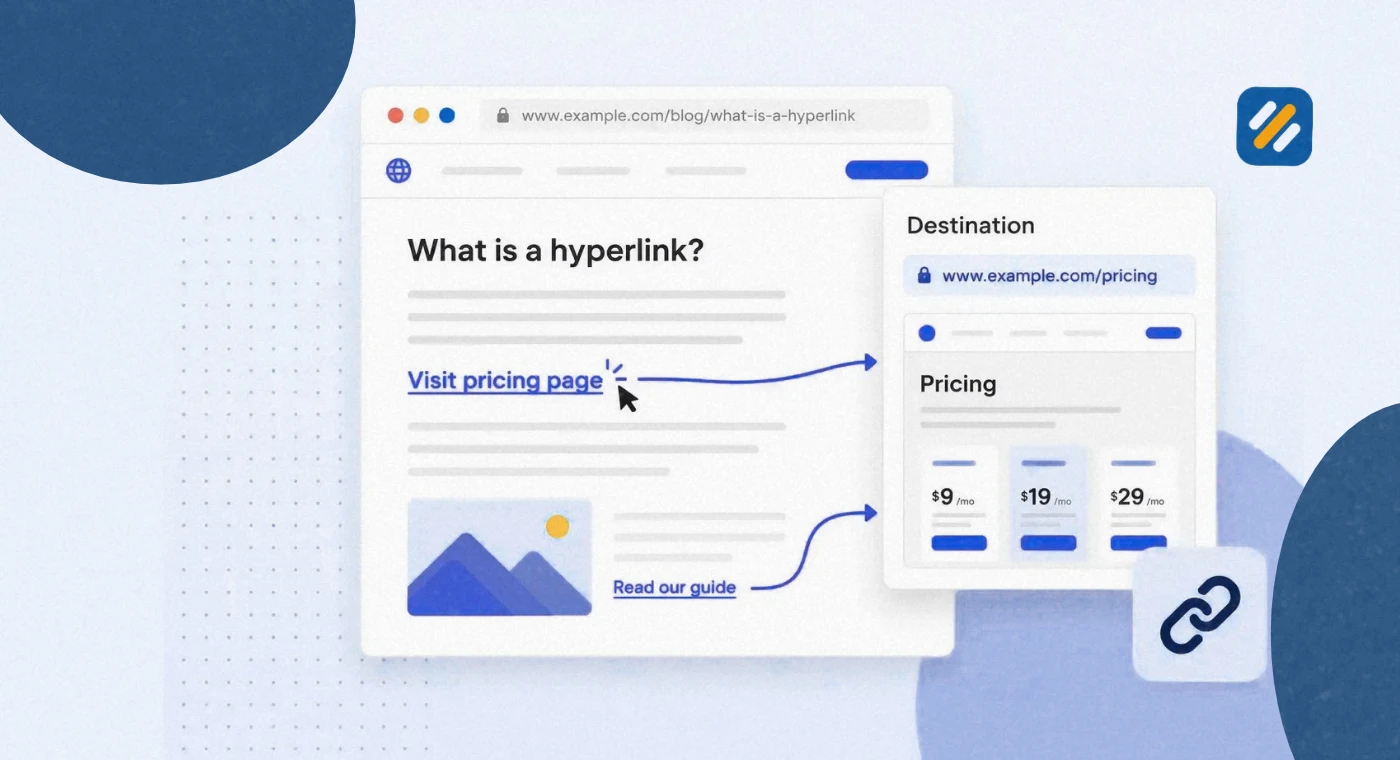
A hyperlink is a clickable reference inside a webpage, document, or email that connects the user to another page, file, section, or online resource. It can be wrapped around text, an image, a button, or any visible element on a page. The moment a user clicks it, the browser follows the link and loads the destination.
The word “hyper” in hyperlink comes from the concept of non-linear navigation. Unlike reading a book from page one to the end, hyperlinks let you jump instantly from one point on the internet to any other point, regardless of where the destination lives. This idea of connected, non-linear information is what Tim Berners-Lee built the World Wide Web on in 1989.
Without hyperlinks, every webpage would be an island. You could not search Google and land on a result. You could not click a navigation menu and browse another page. You could not share an article link with a colleague. The entire internet as we know it runs on hyperlinks.
Here is a simple hyperlink example you encounter every day. When you see the text “Click here to read more” underlined and usually in blue, that is a hyperlink. Clicking it moves you to the destination the webpage owner has set, which could be another article, a contact form, a PDF download, or an entirely different website.
2 What Does a Hyperlink Look Like?
By default, a hyperlink has a very specific visual appearance that most internet users recognise instantly, even without being told what it is.
The classic hyperlink appearance:
- Text is underlined
- Text colour is blue, specifically the shade known as hyperlink blue, which is approximately #0000EE in hex
- After being clicked, the colour changes to purple to indicate it has already been visited
- When you hover over it, your cursor changes from an arrow to a pointing hand
This visual convention has been consistent across the internet since the early 1990s. It was established so users could immediately identify what was clickable and what was not.
However in modern web design, hyperlinks do not always look this way. Web designers frequently style links with custom colours, remove the underline, make them look like buttons, or embed them inside images. The visual appearance changes but the underlying function stays identical.
You can always identify a hyperlink on any webpage by hovering your mouse over any element. If your cursor changes to a pointing hand and your browser shows a URL in the bottom left corner, that element is a hyperlink.
One important visual note specifically relevant to SEO. Google recommends that hyperlinks remain visually distinguishable from surrounding text so users can identify them without hovering. Hiding hyperlinks inside body text using the same colour and no underline can confuse users and reduce click-through rates, which is a negative engagement signal.
3 Hyperlink Definition in Simple Technical Terms
For anyone building a website or working in digital marketing, understanding the technical definition of a hyperlink matters beyond just knowing what it looks like on screen.
Technically, a hyperlink is created using HTML anchor tags. The anchor tag is written as a with a closing /a and uses an href attribute to define the destination URL. The content placed between the opening and closing anchor tags becomes the clickable element the user sees.
The full technical structure of a hyperlink looks like this:
a href="destination URL" Clickable Text Here /a
Breaking this down:
- The letter a stands for anchor, which is the HTML element responsible for creating links
- href stands for Hypertext Reference and contains the URL the link points to
- The text between the tags is what the user sees and clicks
- The URL in the href attribute is the actual destination, which can be a webpage, an image, a PDF, an email address, or a file
The word “hypertext” in hyperlinks refers to text that contains references to other texts, allowing the reader to jump between documents instantly. This is fundamentally different from plain text in a book, which you read linearly from start to finish.
4 Types of Hyperlinks | 6 Different Kinds and When Each One Is Used
Not all hyperlinks work the same way or point to the same kinds of destinations. Understanding the six main types helps you use them correctly on your own website and understand how Google interprets each one.
| Hyperlink Type | What It Does | HTML Example | SEO Relevance |
|---|---|---|---|
| Internal Link | Points to another page on the same website | a href="/about/" About /a | Very high, distributes page authority across your site |
| External Link | Points to a page on a different website | a href="https://google.com" Google /a | Medium, signals content quality when linking to trusted sources |
| Anchor Link | Jumps to a specific section on the same page | a href="#section2" Jump to Section 2 /a | Low direct SEO value but improves user experience |
| Image Link | An image that is clickable and acts as a hyperlink | a href="/page" img src="image.jpg" /a | Medium, alt text on the image acts as the anchor text |
| Email Link | Opens the user’s email client with a pre-filled address | a href="mailto:you@email.com" Email Me /a | No direct SEO value but useful for contact pages |
| Download Link | Triggers a file download when clicked | a href="file.pdf" download Download PDF /a | Low SEO value but useful for user experience and lead generation |
Each type of hyperlink serves a different purpose. For SEO specifically, internal links and external links carry the most weight because they directly affect how Google crawls your site and how link authority flows between pages.
5 What Is a Hyperlink Example | Real Examples From Everyday Websites
The best way to fully understand what a hyperlink is and how it works is to see it in real-world context. Here are six real hyperlink examples that explain both the user-facing element and the HTML code behind it.
Example 1: Text Hyperlink
On a blog post about keyword research, the sentence “Learn how to use Google Search Console” contains a hyperlink where “Google Search Console” is clickable and links to your GSC setup guide.
HTML: a href="/google-search-console-guide/" Google Search Console /a
Example 2: Navigation Menu Hyperlink
Every menu item in your website’s navigation is a hyperlink. When a user clicks “About” in your menu, they are clicking a hyperlink that takes them to your About page.
HTML: a href="/about/" About /a
Example 3: Call to Action Button Hyperlink
Buttons like “Start Free Trial” or “Download Now” on websites are hyperlinks styled to look like buttons using CSS. The function is identical to a text link.
HTML: a href="/signup/" class="button" Start Free Trial /a
Example 4: Image Hyperlink
On ecommerce websites, clicking a product image takes you to the product page. The image itself is wrapped in an anchor tag, making it a clickable hyperlink.
HTML: a href="/product/running-shoes/" img src="shoes.jpg" alt="Red running shoes" /a
Example 5: Discord Hyperlink
On Discord, you can share hyperlinks in messages by simply pasting a URL. Discord automatically converts raw URLs into clickable hyperlinks and generates a preview card for many websites. You can also create formatted hyperlinks in Discord using markdown syntax: Clickable Text
Example 6: Anchor Hyperlink
On long articles, a “Jump to Section” table of contents at the top uses anchor hyperlinks. Clicking “How to Create a Hyperlink” in a contents list jumps the user directly to that section without loading a new page.
HTML: a href="#how-to-create" How to Create a Hyperlink /a
6 How to Create a Hyperlink | Step by Step in Every Environment
How to Create a Hyperlink in HTML
Creating a hyperlink in raw HTML is one of the first skills every web developer learns. The process is straightforward and requires only one HTML element.
Step 1: Open your HTML file in any text editor.
Step 2: Identify the text or image you want to make clickable.
Step 3: Wrap the content in anchor tags and add the destination URL in the href attribute.
Basic text hyperlink:
a href="https://seowithroman.com" Learn SEO With Roman /a
Open link in a new tab:
a href="https://seowithroman.com" target="_blank" rel="noopener noreferrer" Learn SEO With Roman /a
The target="_blank" attribute opens the link in a new browser tab instead of the same window. The rel="noopener noreferrer" attribute is a security best practice that prevents the destination page from accessing your page’s information.
Download link:
a href="/files/seo-checklist.pdf" download Download SEO Checklist /a
Email link:
a href="mailto:grow@seowithroman.com" Contact Roman /a
How to Create a Hyperlink in WordPress
WordPress makes creating hyperlinks simple without touching any code. This is how to do it in the WordPress block editor:
Step 1: Highlight the text you want to turn into a hyperlink.
Step 2: Click the chain link icon that appears in the toolbar above your selected text, or press Ctrl K on Windows or Command K on Mac.
Step 3: Type or paste the destination URL into the input field that appears.
Step 4: Press Enter or click the arrow button to apply the link.
Step 5: To make the link open in a new tab, click the small settings icon next to the link and toggle “Open in new tab” on.
To add a hyperlink to an image in WordPress, click the image to select it, then look for the “Link” option in the block settings panel on the right side. Paste your destination URL there.
How to Create a Hyperlink in Google Docs
Step 1: Highlight the text you want to link.
Step 2: Press Ctrl K or Command K to open the link dialog.
Step 3: Paste your URL and press Enter.
How to Create a Hyperlink in Microsoft Word
Step 1: Highlight your text.
Step 2: Right-click and select “Link” or press Ctrl K.
Step 3: Paste the URL and click OK.
7 Hyperlinks and SEO | Why Google Cares Deeply About Every Link on Your Page
This is the section most beginner guides on hyperlinks completely skip over. As an SEO specialist who works with hyperlinks every single day on client websites, understanding the relationship between hyperlinks and search rankings is not optional. It is essential.
Google’s entire original algorithm, called PageRank, was built on the idea that hyperlinks are votes of confidence. When one webpage links to another, it is telling Google that the destination page contains something worth visiting. The more quality hyperlinks pointing to a page, the more trustworthy and authoritative Google considers it.
Here is how different types of hyperlinks affect your SEO specifically:
Internal hyperlinks distribute page authority across your website. When your homepage links to a category page, and that category page links to individual articles, you are building a flow of authority that helps Google understand your site structure and decide which pages to rank for which keywords. Poor internal linking is one of the most common reasons good articles sit on page five despite being well-written.
External hyperlinks from other websites to your content are called backlinks. These are the most powerful SEO signal outside of content quality itself. A single backlink from a high-authority website can move a page from page three to page one for competitive keywords.
Anchor text, which is the visible clickable text of a hyperlink, tells Google what the destination page is about. If twenty different websites link to your article using the anchor text “beginner SEO guide,” Google understands that your page is about beginner SEO. Anchor text is one of the clearest keyword signals in the entire ranking algorithm.
Nofollow hyperlinks contain a rel="nofollow" attribute that tells Google not to pass link authority through the link. These are used on paid links, user-generated content like blog comments, and links you do not want to endorse. Nofollow links have zero direct SEO value for the destination page but they can still drive real traffic.
8 HTML Hyperlink Attributes Every Beginner Should Know
Understanding hyperlink attributes gives you precise control over how links behave for both users and search engines. Here are the most important ones:
| Attribute | What It Does | Example | When to Use It |
|---|---|---|---|
| href | Sets the link destination URL | href="https://example.com" | Always required for every hyperlink |
| target="_blank" | Opens link in a new browser tab | target="_blank" | Use for external links to keep users on your site |
| rel="nofollow" | Tells Google not to pass link authority | rel="nofollow" | Use for paid links and untrusted content |
| rel="noopener noreferrer" | Security measure for new tab links | rel="noopener noreferrer" | Always pair with target="_blank" |
| title | Adds a tooltip that appears on hover | title="Read more about SEO" | Use to give extra context about the destination |
| download | Triggers file download instead of navigation | download | Use for PDF guides, templates, and media files |
| hreflang | Specifies the language of the destination page | hreflang="en" | Use for multilingual websites targeting different regions |
| rel="sponsored" | Marks a link as a paid placement | rel="sponsored" | Use for all affiliate and sponsored links per Google guidelines |
9 Hyperlink Best Practices for SEO | What to Do and What to Avoid
After many years of auditing websites and fixing link structures for clients across multiple industries, the same hyperlink mistakes appear repeatedly. Here is what the best SEO-optimised websites do differently:
Use descriptive anchor text always. Never use “click here” or “read more” as your anchor text. These phrases tell Google nothing about where the link goes. Instead use the actual topic of the destination page as the anchor text. “How to do keyword research” is infinitely more useful to Google than “click here.”
Keep your hyperlinks visually clear. Blue underlined text is a convention that users recognise instantly. While you can style links with brand colours, they should always be visually distinct from surrounding body text. Hidden links that blend into content confuse users and hurt engagement metrics.
Open external links in new tabs. When you link to another website from your content, use target="_blank" so the user stays on your website while the external page opens in a new tab. This reduces bounce rate and keeps your visitor in your ecosystem longer.
Audit your links regularly. Hyperlinks break when destination pages are deleted or moved. Broken internal links waste crawl budget. Broken external links make your content look outdated. Run a monthly audit using Google Search Console or Screaming Frog free version to catch new broken links before they accumulate.
10 3 Expert Tips About Hyperlinks Most Guides Never Tell You
Tip 1: Your First Hyperlink in an Article Carries More Weight Than You Think
Google pays closer attention to the first hyperlink on a page than to subsequent ones. Place your most important internal link early in your article content, ideally within the first two paragraphs, and use a keyword-rich anchor text. This small habit consistently improves internal link equity distribution across a website.
Tip 2: Too Many Hyperlinks on One Page Dilutes All of Them
Every page has a finite amount of link equity to distribute. If you place fifty hyperlinks on a single article, the value passed through each one is diluted significantly compared to a page with ten well-chosen links. Keep internal links to a maximum of one per 200 to 300 words and be selective about which external sites you link to.
Tip 3: Broken Hyperlinks Are Quiet Traffic Killers
A broken hyperlink does not announce itself. It sits silently on your page sending users to a 404 error while also signalling to Google that your website maintenance is poor. Set up a free account on Ahrefs Webmaster Tools and check your broken outbound links report monthly. Fixing five broken links per month takes under ten minutes and consistently protects both user experience and rankings.
11 Conclusion
A hyperlink is the most fundamental building block of the internet. Every page you visit, every result you click on Google, every piece of content you share online relies on hyperlinks to connect and navigate.
For website owners and bloggers, understanding hyperlinks goes beyond just knowing how to create them. The types of links you use, the anchor text you choose, the pages you link to and from, and how often you audit broken links all directly affect how Google ranks your website.
Start with the basics. Add descriptive anchor text to every link you create. Build a logical internal linking structure as your content library grows. And check your broken links every month before they become a silent SEO problem.
Hyperlinks are not just a technical feature. They are one of the most powerful SEO tools you have direct control over from day one.
Have a question about hyperlinks or how to build a better link structure for your website? Leave a comment below and I will answer it personally.
Join 1,000+ business owners and bloggers who get one actionable SEO tip every week — straight to their inbox. Free forever.
Get Free Weekly Tips →