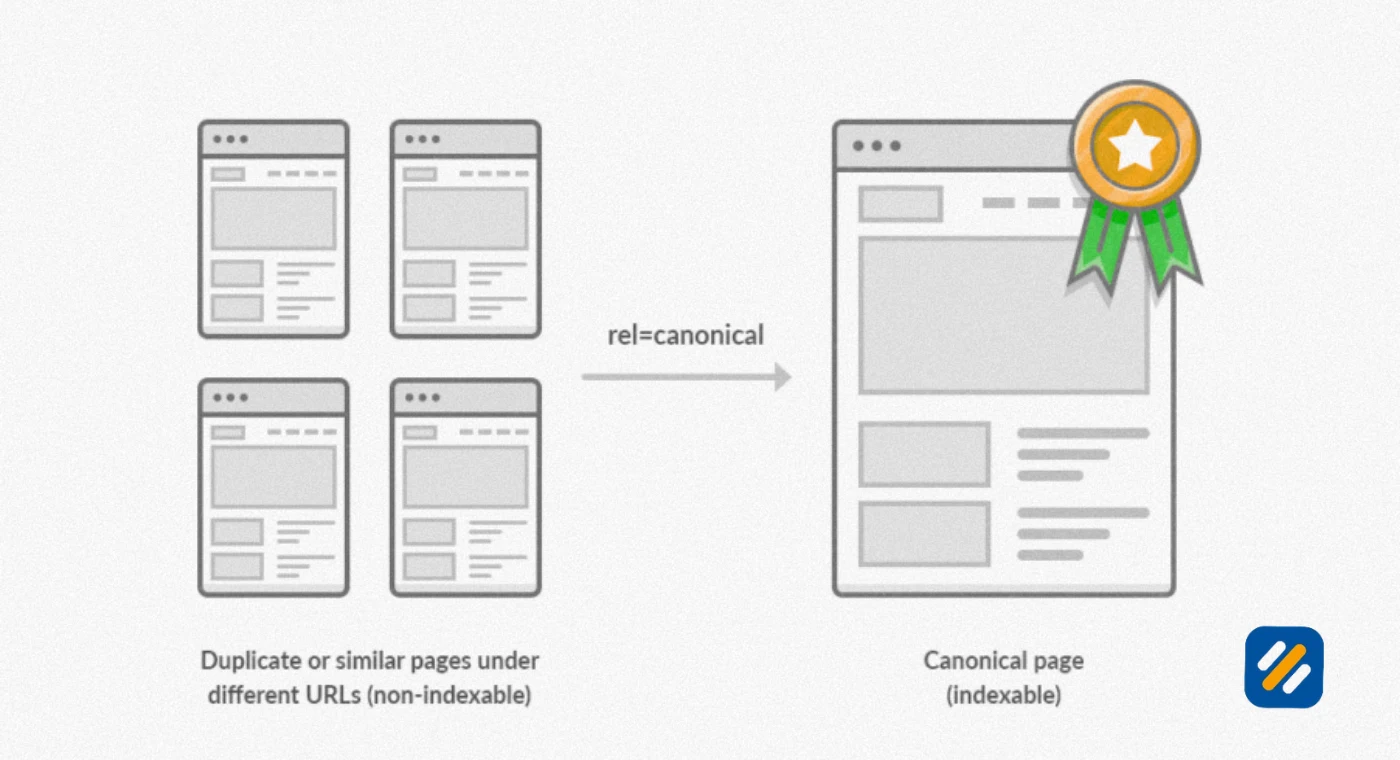
- A canonical tag tells Google which version of a duplicate or similar page it should index and rank
- Without canonical tags, Google may index the wrong version of your page and split your ranking signals across multiple URLs
- The rel canonical tag goes inside the head section of your HTML and points to your preferred URL
- WordPress users can implement canonical tags in seconds using Rank Math or Yoast SEO without touching any code
- Self referencing canonical tags on every page are a best practice that most beginners skip entirely
1 What Is a Canonical Tag and Why Does It Exist
If you have ever wondered why Google sometimes ranks a version of your page you did not intend, or why your rankings feel inconsistent across similar pages, a missing or incorrect canonical tag is one of the most likely causes.
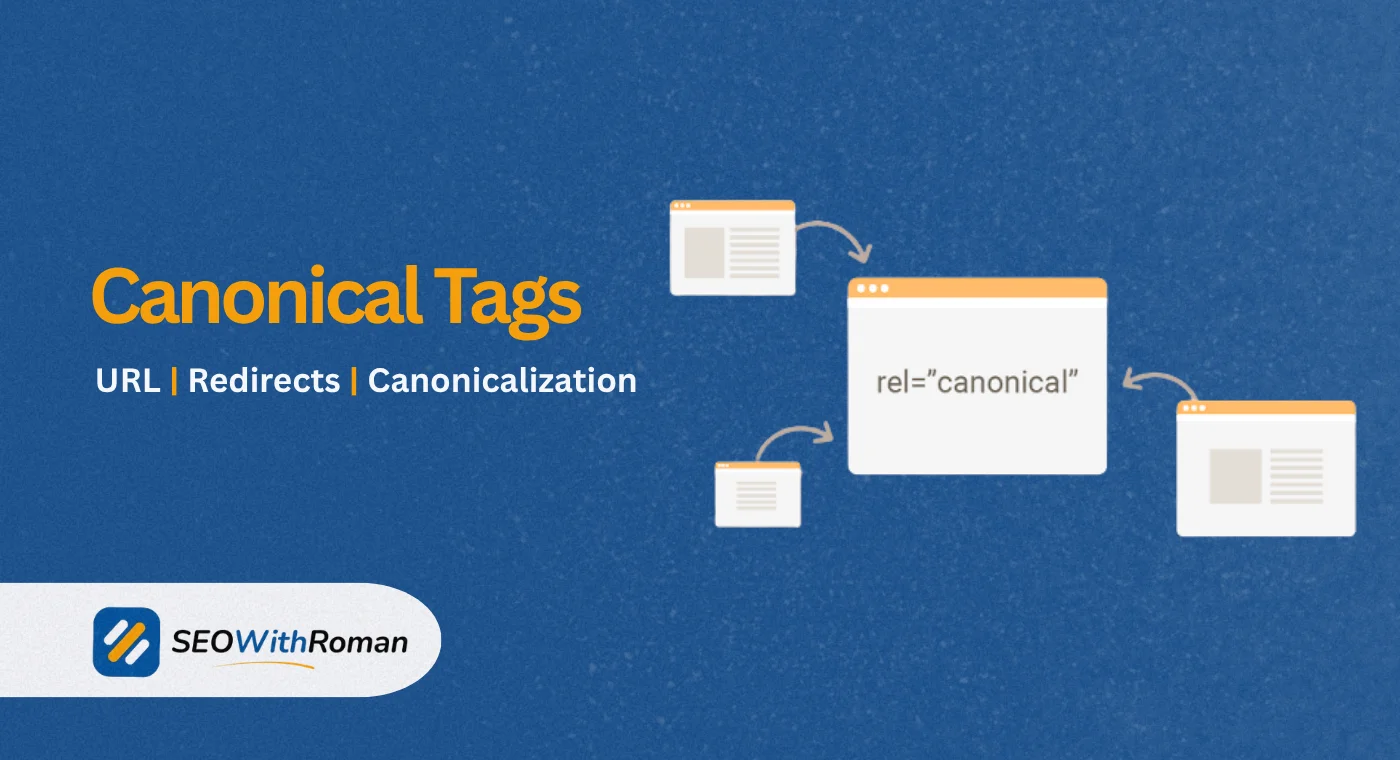
A canonical tag is a single line of HTML code placed in the head section of a webpage that tells Google and other search engines which version of a page is the official, preferred version. It looks like this
link rel="canonical" href="https://yourwebsite.com/your-page-url"
The word canonical comes from the idea of a "canonical form," meaning the authoritative or standard version of something. In SEO, it solves one of the most persistent technical problems websites face: duplicate content.
Here is the real-world problem it solves. Imagine your homepage is accessible through four different URLs
To a human, these all look like the same page. To Google, they are four separate pages with identical content. Without a canonical tag, Google has to guess which one to index and rank. It may choose the wrong one. It may split your backlink equity across all four. It may crawl all four repeatedly and waste your crawl budget.
The canonical tag eliminates that guesswork entirely.
In many years of doing technical SEO audits across multiple client websites, canonical tag issues are consistently in the top five problems I find on WordPress sites. They are invisible to the website owner but silently damaging to rankings.
2 How Does a Canonical Tag Actually Work | What Google Does When It Sees One
Understanding how Google processes canonical tags changes how carefully you implement them.
When Googlebot crawls a page and finds a canonical tag, it reads the URL specified in that tag and treats it as a hint, not an instruction. This is an important distinction that most articles gloss over. Google says it treats rel canonical as a strong hint rather than a hard directive. In practice, Google follows canonical tags the vast majority of the time, but it can override them if it believes your tag is incorrect.
Here is the sequence of what happens
Google crawls your page and finds the canonical tag. It checks whether the URL in the canonical tag is accessible, returns a 200 status code, and is not blocked by robots.txt. If all conditions are met, Google designates that URL as the canonical version and focuses its indexing and ranking signals on that page. The non-canonical versions may still be crawled occasionally but they will not rank.
The critical point is what happens to backlinks and ranking signals. When multiple versions of a page exist, any backlinks pointing to non-canonical versions do not automatically transfer to the canonical. Setting a canonical tag tells Google to consolidate those signals onto your preferred URL. This is why canonical tags are not just about avoiding duplicate content penalties. They are about concentrating your ranking power onto a single URL.
3 When Do You Actually Need a Canonical Tag | Real Situations You Will Recognise
Canonical tags are not just for large ecommerce websites with thousands of product pages. They are relevant to any website where the same or very similar content can be reached at more than one URL. Here are the most common situations:
URL parameter variations. When a visitor filters products, sorts results, or adds a tracking code to a URL, the URL changes but the content stays the same. For example, yoursite.com/shoes and yoursite.com/shoes?color=blue both show the same page. Without a canonical tag, Google may index both versions separately.
HTTP vs HTTPS versions. If your website is accessible on both http://yoursite.com and https://yoursite.com, you have duplicate content. The canonical tag on both versions should point to the HTTPS version.
Trailing slash vs no trailing slash. yoursite.com/blog and yoursite.com/blog/ are technically different URLs to Google. A canonical tag prevents them from competing with each other.
WWW vs non-WWW. www.yoursite.com and yoursite.com are separate URLs. Pick one as your preferred version and canonicalise all others to it.
Syndicated content. If you publish an article on your website and it is republished on another website, the republished version should carry a canonical tag pointing back to your original article. This ensures Google credits your site as the original source.
Paginated content. If your blog has page 1, page 2, and page 3 of posts, each page is technically unique but covers a subset of the same category. Handling pagination correctly with canonical tags prevents thin content signals.
| Situation | Problem Without Canonical | Canonical Tag Solution |
|---|---|---|
| HTTP and HTTPS both live | Google indexes both versions separately | Canonical on HTTP pointing to HTTPS version |
| WWW and non-WWW accessible | Backlinks split between two versions | Canonical pointing to your preferred version |
| URL parameters from filters | Hundreds of near-duplicate pages created | Canonical on all parameter versions to clean URL |
| Trailing slash vs no slash | Two versions compete for same keyword | Canonical pointing to one consistent version |
| Syndicated content published elsewhere | External site outranks your original | External site adds canonical pointing to your original |
| Paginated blog or category pages | Thin content signals on deeper pages | Each page self-referencing or pointing to page one |
4 How to Write the Canonical Tag HTML | The Exact Code You Need
The canonical tag HTML is one of the simplest pieces of code in all of technical SEO. Here is exactly how it is structured and where it goes.
The canonical tag always sits inside the head section of your HTML document, not in the body. A canonical tag placed in the body section is completely ignored by Google. This is one of the most common canonical tag implementation mistakes.
Here is the exact format
head
link rel="canonical" href="https://www.yoursite.com/your-page-url/"
/head
Three rules Google requires you to follow:
Use absolute URLs, not relative URLs. An absolute URL includes the full domain: https://yoursite.com/page. A relative URL is just /page. Google officially states that relative URLs are supported but recommends absolute URLs to avoid confusion. Always use the full URL.
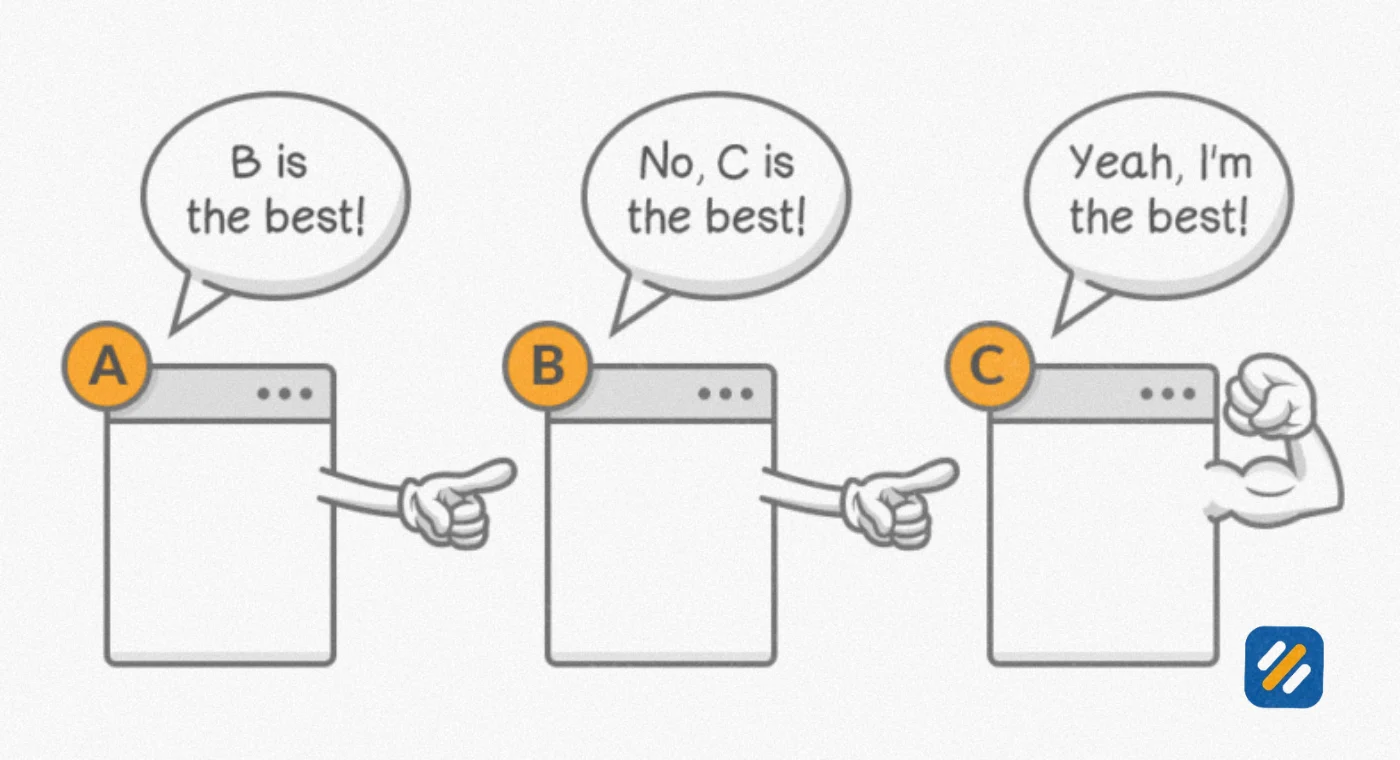
Use only one canonical tag per page. If Google finds multiple canonical tags on the same page, it ignores all of them. This is a more common problem than people realise, especially on WordPress sites where a theme and an SEO plugin both output canonical tags simultaneously.
The canonical URL must be accessible. If you point a canonical at a URL that returns a 404 error, a redirect, or is blocked by robots.txt, Google will likely ignore the canonical entirely. Always point your canonical at a live, crawlable page returning a 200 status code.
5 How to Implement Canonical Tags in WordPress Using Rank Math and Yoast
For most WordPress website owners, you will never need to touch HTML code directly. Both Rank Math and Yoast SEO handle canonical tag implementation through their settings panels.
Implementing Canonical Tags in Rank Math:
Rank Math automatically adds a self-referencing canonical tag to every page and post on your WordPress site the moment you install and activate the plugin. You do not need to configure anything for the default behaviour.
To set a custom canonical URL on a specific page or post, open that post in the WordPress editor. Scroll down to the Rank Math SEO panel and click the Advanced tab. You will see a field labelled Canonical URL. Enter the URL you want Google to treat as the canonical version for that page. Save the post and Rank Math inserts the correct canonical tag into the head section automatically.
Implementing Canonical Tags in Yoast SEO:
Yoast SEO also automatically adds self-referencing canonical tags to all pages by default. To set a custom canonical URL, open the post or page editor. Scroll to the Yoast SEO panel and click on Advanced. You will find a Canonical URL field where you can enter your preferred URL.
One critical warning for WordPress users. If you have both Rank Math and Yoast SEO active on the same website, both plugins will output canonical tags and Google will ignore all of them. Only ever run one SEO plugin at a time on a WordPress website.
Self Referencing Canonical Tags | What They Are and Why Every Page Needs One
A self referencing canonical tag is a canonical tag where the URL in the tag matches the URL of the page it is on. In other words, the page is pointing to itself as its own canonical version.
This sounds redundant. Why would a page need to tell Google that it is the canonical version of itself?
The reason is defensive. Without a self referencing canonical, if someone links to your page using a slightly different URL format, such as adding a tracking parameter, Google may start treating that parameter version as a separate page. Your own page has now effectively created a duplicate of itself without you doing anything.
A self referencing canonical on every page acts as a permanent signal to Google that this URL, exactly as it is written, is the intended version. Any variation of this URL that Google encounters elsewhere should be treated as non-canonical.
Every page on your website should have a self referencing canonical tag. Rank Math and Yoast both add these automatically, which is another reason to always run one of them on any WordPress website.
6 Canonicalization vs 301 Redirect | Which One Should You Use and When
One of the most common questions I get from clients during technical SEO audits is whether they should use a canonical tag or a 301 redirect to handle duplicate content. The answer depends on what you are trying to achieve.
| Situation | Use Canonical Tag | Use 301 Redirect |
|---|---|---|
| Duplicate page you want to keep accessible to users | Yes | No, redirect removes user access |
| Old URL permanently replaced by new URL | No | Yes, redirect is the clean permanent solution |
| URL parameter duplicates on ecommerce | Yes | Only if parameters should never be directly accessed |
| Syndicating content on another website | Yes, on the external site | No |
| HTTP to HTTPS migration | Redirect is cleaner | Yes, redirect preferred for full site migration |
| Paginated content | Yes, with careful implementation | Only if you want deep pagination pages removed |
| Consolidating multiple old domains | No | Yes, 301 redirect entire old domain |
The key distinction is user access. A canonical tag keeps both versions of the page accessible to users while telling Google which one to rank. A 301 redirect removes access to the old URL entirely and permanently sends both users and Google to the new one.
For most duplicate content situations on a live website, canonical tags are the safer and more flexible choice. For permanent URL changes where you never want the old URL to be visited again, a 301 redirect is cleaner.
7 Common Canonical Tag Mistakes That Are Quietly Hurting Your SEO
After auditing dozens of websites, these are the canonical tag mistakes I find most frequently
Canonical pointing to a 404 page. If your canonical URL returns a 404 error, Google cannot index it and will likely ignore the canonical entirely, potentially indexing the wrong duplicate version instead. Always verify that your canonical URL returns a 200 status code before publishing.
Canonical pointing to a redirected URL. If your canonical points to a URL that then redirects to another URL, Google has to follow the redirect chain before reaching the actual page. This creates confusion and Google may not honour the canonical. Always point your canonical directly to the final destination URL.
Blocking the canonical URL in robots.txt. If your canonical URL is blocked from crawling in robots.txt, Google cannot access it to verify the canonical tag. The canonical will be ignored. Never block a URL in robots.txt that you are using as a canonical destination.
Using canonical tags instead of fixing the real problem. Canonical tags are a signal, not a fix. If your website is generating thousands of duplicate URLs through URL parameters, the long term solution is to fix the parameter handling at the server level or in your CMS, not to rely entirely on canonical tags to manage the duplication.
Canonical and noindex on the same page. Adding both a canonical tag and a noindex tag to the same page sends contradictory instructions. The canonical says index this version while the noindex says do not index this page. Google's documentation says noindex takes priority, meaning the canonical tag becomes useless.
Multiple canonical tags on one page. This happens frequently on WordPress when a theme outputs a canonical tag and an SEO plugin also outputs one. Google ignores all canonical tags when it finds more than one. Check your page source code to confirm only a single canonical tag appears in the head section.
8 How to Find and Fix Canonical Tag Issues on Your Website
You do not need a paid tool to audit your canonical tags. Here are three free methods:
Method 1: Check individual pages manually
Right click any page on your website and select View Page Source. Press Ctrl+F and search for "canonical." You will see the canonical tag if one exists. Check that it points to the correct URL, uses an absolute URL format, and appears only once in the head section.
Method 2: Google Search Console URL Inspection Tool
Open Google Search Console and enter any page URL into the URL Inspection tool. Google will show you the canonical URL it has selected for that page. If the Google-selected canonical differs from your declared canonical, Google has overridden your tag and you need to investigate why.
Method 3: Screaming Frog Free Version
Crawl up to 500 URLs for free with Screaming Frog. Under the Canonicals tab you can see every page's declared canonical, whether it matches the page URL, whether it points to a 4XX page, and whether any pages are missing canonical tags entirely.
Method 4: Ahrefs Free Webmaster Tools
Ahrefs Webmaster Tools runs a full site audit and flags canonical issues including canonical tags pointing to redirects, canonical tags pointing to 4XX pages, and duplicate pages missing canonical tags.
9 3 Expert Tips on Canonical Tags That Most SEO Guides Never Mention
Tip 1: Always Check Google's Chosen Canonical, Not Just Your Declared One
The canonical tag you add to your page is your declared canonical. But Google makes its own decision about which URL it actually treats as canonical, called the Google-selected canonical. These two can differ. Open Google Search Console, use the URL Inspection tool on any important page, and compare the "User-declared canonical" with the "Google-selected canonical." If they do not match, Google is overriding your tag, usually because of conflicting signals like internal links or hreflang issues pointing to a different URL.
Tip 2: Canonical Tags Do Not Pass 100% of Link Equity
Most SEO guides imply that a canonical tag perfectly consolidates all backlink value from non-canonical versions to the canonical. In reality, a redirect is more efficient at passing link equity than a canonical tag. If you have a non-canonical page with significant backlinks and you have the option to redirect it, a 301 redirect will consolidate that link equity more cleanly than a canonical tag alone.
Tip 3: Add Canonical Tags to PDFs and Documents You Host
Most website owners only think about canonical tags on HTML pages. But if you host PDFs, downloadable guides, or other documents on your website, those files can also be indexed and create duplicate content issues. For PDFs you cannot add an HTML canonical tag, so you need to implement it via the HTTP header instead. This is an advanced implementation but it is the correct way to handle canonical URLs on non-HTML content that Google indexes.
10 Conclusion
Canonical tags are one of those technical SEO elements that sit quietly in the background doing important work that most website owners never see or think about. But the moment something goes wrong with them, the effects show up in your rankings, your crawl efficiency, and your backlink value.
The good news is that for most WordPress websites, Rank Math or Yoast SEO handles canonical tag implementation automatically. Your job as a website owner is to understand what they are doing, verify occasionally that the right canonical is being declared, and know how to spot and fix issues when they arise.
Start by opening Google Search Console and checking the URL Inspection report on your five most important pages. Confirm the Google-selected canonical matches your intended URL on each one. That single check takes five minutes and immediately tells you whether your canonical tag implementation is working correctly.
Have a question about a specific canonical tag issue you are seeing? Drop a comment below and I will help you diagnose and fix it.
Join 1,000+ business owners and bloggers who get one actionable SEO tip every week — straight to their inbox. Free forever.
Get Free Weekly Tips →